

What Pixelcut is
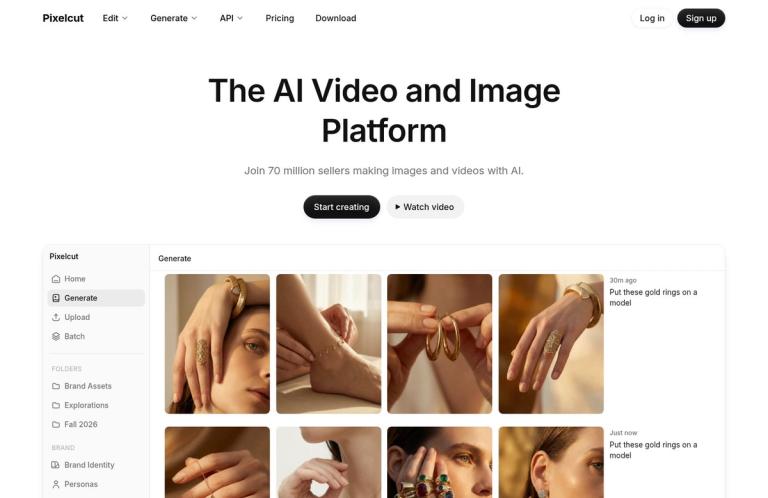
Pixelcut is an AI image and video platform that brings editing and content-creation tools together in a browser-based service, with mobile apps also mentioned on its pricing page. Its official site lists tools for removing or changing backgrounds, upscaling and expanding images, erasing or retouching parts of a picture, generating images, and creating AI video. The homepage also presents product photography, AI advertising, batch editing, and brand-consistent content as use cases. That breadth makes Pixelcut relevant to sellers, small businesses, creators, and people who need to prepare visual assets without assembling a separate tool for every task.
The distinction to keep in mind is that a tool appearing in Pixelcut’s catalogue does not automatically mean it is included without restrictions in the free plan. The official pricing page lists the free plan at $0 per month, billed yearly, with limited background removal, limited upscaling, and exports without a watermark. It also shows several other features as limited for Free in its plan comparison. Pixelcut therefore offers a real free starting point, but not unlimited free use of its editing tools. The live plan display and any usage notice in your account are the right places to check before depending on repeated edits.
Pixelcut’s fit depends on the kind of work you do. Someone preparing a few product photos may value background removal, image enlargement, and background replacement in one service. A creator working on campaign concepts may be more interested in generative fill, AI image creation, or video tools. A business producing assets at scale may care about batch editing, team access, and the monthly export allowances shown for paid plans. These are different needs, and the plan features do not make every task interchangeable: a background cutout, a generated image, and a batch export are distinct operations with different purposes and plan conditions.
Tools and suitable jobs
Background removal and product imagery
Pixelcut lists background removal for both images and video. For a still image, removing the background can help isolate a product or person before placing the subject in a new visual context. The pricing page explicitly labels background removal as limited on Free and unlimited on Pro and Business. That makes the tool a plausible place to start for occasional cutouts, while users who need frequent processing should compare their workload with the paid-plan terms.
The homepage also promotes AI product photography and product showcase imagery. Those are not simply the same job as cutting out a background: the site describes product visuals generated from a prompt and emphasizes maintaining character or brand consistency across content. If your goal is an accurate product listing, inspect generated or edited details against the real item. Check colour, shape, labels, and any features a buyer would rely on. That is practical quality control, not a claim that Pixelcut guarantees a particular result.
For a useful evaluation, choose one representative product photo rather than beginning with a full catalogue. Try the relevant background workflow, examine fine edges and shadows, and view the exported image at the size you intend to publish. If you later compare services, use the same source image and task in each one. This advice helps you judge fit for your own material; it is not a report of a hands-on test.
Upscaling, expanding, and retouching
Pixelcut lists an image upscaler and says its upscaling can reach up to 16 times the resolution, with a choice of models including Topaz. The pricing page marks Fast Upscaler as limited on Free and unlimited on Pro and Business. Upscaling may be useful when an image needs to fit a larger placement, but enlarging an image is not a guarantee that all newly visible detail is faithful to the original. Compare important features with the source before using the result in a product listing, presentation, or client deliverable.
The Expand Image feature, described on the pricing page and as an expand tool on the homepage, is for extending beyond the edges of a frame or reframing an image. It differs from upscaling: the former adds room around the existing composition, while the latter increases image resolution. Pixelcut’s plan comparison marks Expand Image as limited on Free and provides daily allowances for paid tiers; those displayed allowances are not necessary to establish the main free-versus-paid distinction. Check the current plan display if a particular daily volume matters to your work.
For retouching, the homepage describes erasing or editing with generative fill. The pricing comparison lists Magic Eraser and Generative Fill as limited on Free, while Pro Eraser appears among paid-plan features. These names indicate related but distinct editing options, so choose the specific tool that matches the edit rather than assuming every eraser or fill capability has identical access. After removing an object, inspect the edited area for changes to nearby text, edges, repeating patterns, or other details that matter.
Generation, video, and batch work
The site lists an AI image generator, AI video generator, video background remover, AI UGC ads, and AI actors. It also describes creative workflows that use models such as Nano Banana Pro and Sora 2. Pixelcut’s pricing page explains that credits are used when creating or editing with certain advanced AI models, particularly third-party models. Pro includes 600 AI credits monthly, and Business includes 3,600 AI credits monthly. These credit balances are not the same thing as unlimited generation; the number of creations possible depends on the model and its credit cost. Check the current credit information for the model you intend to use.
Pixelcut also promotes batch editing across hundreds of files, while its paid plans specify monthly batch-export allowances: 1,000 for Pro and 2,000 for Business. Those are plan-specific export allowances, not a statement that every editing tool or generation workflow has the same batch capacity. Free is not listed with a monthly batch-export allowance in the plan summary. If you have a large set of assets, first confirm which operation you need—batch editing, batch export, or AI generation—and check the corresponding plan details before preparing the whole set.
A practical workflow
A sensible way to approach Pixelcut is to start with the outcome, not the broad promise of an all-in-one platform. For a clean product cutout, choose background removal. For a larger image, use the upscaler. To change the frame, use Expand Image; to remove an unwanted object, look at the erasing and retouching tools. For a new visual concept, consider the image-generation or product-photography workflows. This is a suggested way to navigate the listed tool categories, not a claim that the interface follows a particular sequence.
Keep an unchanged copy of the original file. Then try the tool on one representative image and inspect the result at the size and context where it will appear. For product work, check that editing has not altered a material product detail. For cutouts, look at the boundary around the subject. For an upscale, compare distinctive details with the source. For generative edits, decide whether the amount of visual change is appropriate for the purpose. This review step is particularly important when an image will communicate factual information to customers or clients.
Before committing to a larger run, read the plan and usage messages shown for your account. Free background removal, upscaling, and several other listed tools are limited. Advanced AI models use credits, while paid plans have different credit balances and batch-export allowances. These are separate kinds of limits: a monthly credit balance is not an export quota, and a batch-export allowance does not mean that advanced model generation is unlimited. If a deadline depends on a repeated workflow, test access and the relevant plan terms first.
Finally, check the export choices shown for your task. Pixelcut’s pricing page says Free exports are without a watermark, which is a useful stated benefit. The available plan summary does not establish that every tool has the same export settings, file types, or output options. Save the result where you can find it and compare it with your original before publishing. These are general workflow recommendations rather than claims about specific storage, recovery, or file-management features.
Free plan and paid pricing
Pixelcut’s Free plan costs $0 per month, billed yearly, and includes limited background removal, limited upscaling, and export without a watermark. Its feature comparison also marks Magic Eraser, Fast Upscaler, Generative Fill, and Expand Image as limited on Free. This makes the free option useful for trying the service and handling some occasional edits, but it should not be described as unlimited. Pixelcut does not state a single free allowance that applies equally to all these different tools in the plan summary.
Pro is listed at $8 per month when billed yearly, with a displayed $10 monthly price before the yearly discount. Pixelcut says yearly plans save 20%. Pro includes 600 AI credits monthly, access to all AI models, unlimited background removal and upscaling, a three-person team, 1,000 batch exports monthly, and a commercial licence. Business is listed at $24 per month when billed yearly, with a displayed $30 monthly price before the yearly discount. It includes 3,600 AI credits monthly, access to all AI models, unlimited background removal and upscaling, a ten-person team, 2,000 batch exports monthly, and a commercial licence.
The plan comparison is useful because it separates several kinds of access. “Unlimited” on the paid-plan summary applies to background removal and upscaling, not to every Pixelcut capability. AI credits are a separate resource for certain advanced models, and the number of possible generations varies by model. Batch exports have their own monthly counts. Teams and commercial licensing are also listed as paid-plan benefits. Compare the specific feature you intend to use rather than treating a higher plan as one general, unlimited usage pool.
The pricing page says subscriptions can be cancelled at any time and that yearly subscriptions save 20%. Because prices and plan terms may change, check the official page before subscribing. If you only need a small number of edits, start with Free and see whether its displayed limits accommodate the task. If you have recurring work, compare the paid plan’s specific inclusions with your expected volume and need for credits, team seats, batch exports, and commercial use.
Limitations and privacy considerations
Pixelcut’s clearest free-plan restriction is that multiple tools are limited, including background removal, upscaling, Magic Eraser, Generative Fill, and Expand Image. Some advanced models use credits, and the paid plans distinguish monthly credits from batch exports. This means that the word “free” should not be taken to mean unlimited processing, unlimited model use, or access to every tool without a plan boundary. Review the current pricing page and account interface for the feature you actually plan to use.
The homepage and pricing page describe a wide range of tools, but a tool listing alone does not establish that its output will suit every image or business requirement. Check edits before publication, especially where accuracy matters. Pixelcut’s homepage also presents AI content and product imagery as creative workflows; users should decide whether generated or altered visuals meet their own standards and any applicable requirements for their intended use.
Before uploading an image, consider whether you are comfortable using it with an online service. Pixelcut links to its privacy materials from the official site; consult the current privacy information for the vendor’s terms. This review does not make independent assurances about file retention, confidentiality, or deletion. For sensitive personal, customer, or business images, review those terms and your own obligations before uploading.
Alternatives
The best alternative depends on the job. For a focused background-removal comparison, remove.bg is relevant to investigate. For product-photo workflows, PhotoRoom is another option to compare. If you want a broader image editor rather than a primarily automated edit, Photopea may be worth considering. Compare current features, access conditions, export options, and pricing directly; these services should not be assumed to have identical tools or free limits.
A practical way to choose is to take one representative image and define what a successful result needs to preserve. Compare the relevant workflow in each service, then inspect the output and the plan conditions for repeated use. For occasional cutouts, ease of access and the free allowance may matter most. For frequent product assets, batch capacity, credits, team seats, and commercial terms may be more important. That is a decision framework, not a claim that one service is universally better.
Verdict
Pixelcut is a broad AI image and video toolkit with a clear free entry point: limited access to several editing tools and exports without a watermark. Its strongest fit is for people who want related jobs—such as background removal, upscaling, retouching, expansion, and AI content creation—available within one service. The homepage also positions it for product visuals, advertising, and batch workflows.
The main caveat is the difference between trying Pixelcut for free and relying on it for ongoing production. Free tool use is limited; advanced models use credits; and batch exports have separate paid-plan allowances. Pro and Business list concrete benefits for recurring work, including monthly credits, team seats, and batch exports, but those features should be matched to your actual workflow. Start with the specific tool you need, check its current plan terms, and inspect the output before using it. Pixelcut is worth considering when its particular combination of creative tools fits the job and its current limits fit your volume.


