

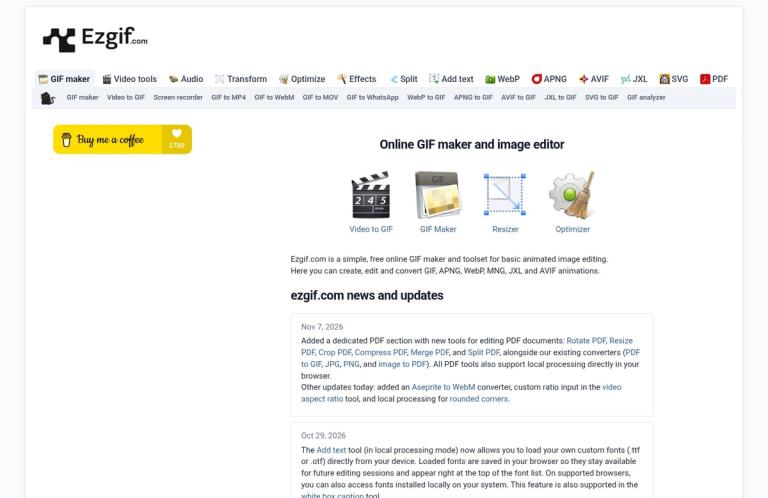
What Ezgif is
Ezgif is a free online toolset focused on creating and editing animated GIFs. Its official site also lists tools for converting and editing other image formats, including animated WebP, APNG, AVIF, JXL and MNG, as well as some basic video editing. The official Ezgif website is the starting point for its GIF maker and image-editing tools; the About page describes the service and its broader format support.
The most clearly documented workflow is video to GIF. You can provide a video file or enter a direct video URL, select a portion of the clip, choose settings such as frame rate and loop count, and create an animation. The converter also offers output choices for animated formats including WebP, APNG, AVIF and JXL. That makes Ezgif more than a single-purpose GIF encoder, while its practical strength remains quick browser-based work with animations and image files.
This is a useful fit when you have a specific, modest task: turn a short clip into a looping image, resize an animation, or convert between formats supported by a particular tool. The site’s menu and About page also identify functions such as optimizing, cropping, splitting, adding text and applying effects. The exact controls depend on the tool and workflow you choose, so check the relevant page rather than assuming every option is available for every input format.
Video to GIF: the best-documented workflow
The video converter accepts MP4, WebM, AVI, MPEG, MKV, FLV, OGG, MOV, M4V, WMV, ASF, 3GP and other video files. Its server-upload form states a maximum file size of 200 MB. You can upload a file from a computer or smartphone, or provide a direct video URL. The page says the converter uses the first five seconds if you do not select a different portion. For a particular reaction, demonstration or brief moment, you can enter start and end times to choose the segment instead.
The duration you can select depends on frame rate. Ezgif states a maximum of 60 seconds at 5 frames per second and 30 seconds at 10 frames per second, with the maximum decreasing as frame rate rises. A higher frame rate can make motion appear smoother, but the page warns that it greatly increases file size. These are useful planning points: decide which moments matter, then choose a frame rate that suits the motion and intended use. The page does not give exact maximum durations for every frame rate, so check its live controls if you need a value outside the stated examples.
The converter includes controls for output dimensions, cropping and aspect ratio, as well as a loop count. A loop count of zero means the GIF loops forever. It also lists several encoding methods, including ezgif-hq, ezgif-kmeans and options using different dithering approaches. If you do not need a particular encoding method, the default may be a reasonable place to start; if appearance or file size matters, compare the available results for your own clip. This is practical advice, not a claim that one setting always produces the best result.
The page recommends sticking to the video’s native resolution or scaling down, and cautions that upscaling increases file size and processing time without improving quality. It also suggests optimizing the GIF after conversion to reduce its file size. These options make the workflow useful for preparing an animation for a particular display area or upload constraint. They do not guarantee a specific size or quality: review the saved output in the place you intend to use it.
More than GIF output
The video-to-GIF page also offers conversion to animated WebP, APNG, AVIF and JXL. This matters if you need an animation but are not committed to GIF. The right output depends on where the file will be displayed and what formats that destination supports. Check those requirements before converting; the presence of several output choices does not mean every destination can display them.
Ezgif’s About page identifies animated WebP, APNG and AVIF among the formats it supports, and its homepage also lists MNG and JXL animations. It describes the overall service as primarily for animated GIF creation and editing, with conversion for many other image formats and some basic video editing. That description supports considering Ezgif for animation and image-format tasks, but it is not a guarantee that any particular pair of formats or edit is available. Open the page for the specific operation and check its listed inputs and outputs.
The site’s menus show a broader set of related utilities. For GIF work, the video converter page links to tools such as GIF to MP4, GIF to WebM, GIF to MOV, GIF maker, resizer, optimizer, reverse, speed, effects and add-text options. The homepage also highlights a GIF maker, resizer and optimizer. This range can make Ezgif convenient when a task involves several simple steps—for example, making an animation from a clip, then resizing or optimizing it. That is a suggested workflow based on the listed tools, not a claim that every file moves between tools without an additional upload or selection.
Free use and the actual boundaries
Ezgif describes itself as free, and the homepage calls it a free online GIF maker and toolset for basic animated-image editing. The appropriate pricing label is free. The official pages cited here do not present a paid subscription price or credit allowance. Free does not, by itself, mean every workflow has identical limits or that all processing modes work the same way.
For the video converter’s server-upload form, the stated file-size maximum is 200 MB. The converter also limits the selected segment according to frame rate, with the specific examples of 60 seconds at 5 fps and 30 seconds at 10 fps. These are boundaries for that video-conversion workflow, not a universal limit for every Ezgif tool.
The video converter offers a local-processing option. Ezgif says that when it is enabled, files are processed in the browser without being uploaded to a server, and warns that some features may be limited. The homepage’s published update about local mode says that it has no file-size limits, while also noting that not all tools and formats are supported. Treat those statements as applying to local processing, not as a reason to assume every operation is available locally. If your task depends on a specific control, format or file, confirm that the option works in the mode you plan to use.
A practical way to use the converter
- Open the video-to-GIF converter and check that your video is a listed format. If you plan to use the server-upload form, make sure the file is within its stated 200 MB maximum. You can also enter a direct video URL.
- Choose whether local processing suits your task. When enabled, Ezgif says processing happens in the browser without uploading the file to a server; some features may be limited. If the controls you need are unavailable locally, decide whether the server workflow is suitable for your file.
- Select the clip segment. The page uses the first five seconds if you leave the start and end times unchanged. For a specific moment, identify its start and finish before converting. The video preview and current-position control can help you set those times.
- Choose an output format and settings. For GIF, consider the frame rate, dimensions, crop and loop count. Use a lower resolution if that suits the display size, and bear in mind the page’s advice that upscaling can increase size and processing time without improving quality.
- Generate the animation and inspect it. Check that the right moments appear, that the loop works as intended, and that the size is appropriate for its destination. If needed, use the listed resize, crop or optimization tools and review the result again.
- Save the output and keep the original video until you have confirmed the animation works where you intend to use it.
This sequence is useful for a short clip destined for a chat, web page or presentation, but it is only a suggested approach. A longer source, a strict upload-size requirement or a destination that does not support GIF may call for a different frame rate, output format or tool. Check the destination’s requirements rather than assuming an animation will behave identically everywhere.
Privacy and file handling
The video-to-GIF page says uploaded files are automatically deleted one hour after upload. Ezgif also says its local-processing mode processes files in the browser without uploading them to a server when that mode is enabled, while warning that some features may be limited. These are the vendor’s statements about the specified workflows; they are not a general security guarantee for all tools or data.
If a file is sensitive, confirm that local processing is enabled and that the operation you need is available in that mode before proceeding. If you use server upload, consider whether that workflow is appropriate for the material. Follow any applicable workplace or organizational rules for confidential files, and avoid relying on an option merely because it appears elsewhere on the site: the availability of local processing can vary by tool and format.
Where Ezgif fits—and where it may not
Ezgif is best suited to focused animation and image tasks rather than being treated as a full professional video editor. Its video-to-GIF page offers trimming by start and end times, output sizing, cropping, aspect-ratio choices, frame-rate and loop settings, and several encoding methods. It also identifies some basic video editing on the About page. If your job depends on a particular video-editing feature, verify that the relevant tool provides it; the general description does not establish a full editing suite.
Format conversion also changes the kind of file you are making. A GIF is an animated image, not an interchangeable substitute for every video. Consider the intended playback support and display size, and check the result in its destination. Ezgif’s optimization advice can help you pursue a smaller file, but the official page does not promise a particular output size, conversion speed or visual match for every source.
For a still-image task, the site’s broad image-format offering may be relevant, but confirm the exact input, output and operation on the corresponding page. For a task requiring a specific export format, extensive timeline work or other specialized controls, compare the stated capabilities of tools built for that purpose rather than inferring support from Ezgif’s general description.
Alternatives
If your main requirement is converting a file between formats, Online-Convert is a relevant alternative to compare. If you need a general editor for still images, Photopea may be a closer category match. These are suggestions based on tool type, not claims that either service duplicates Ezgif’s GIF workflow or shares its limits.
For a video-to-animation task, compare supported inputs, output formats, duration controls, file handling and local-processing options on the official pages of any alternative. For image editing, compare the exact operation and format support. Choose based on the job and destination, rather than the broad label “converter.”
Verdict
Ezgif is a strong fit to consider for free, browser-based animated-image work, particularly when the task is turning a video clip into a GIF and then adjusting the result. Its video converter documents useful controls for selecting a segment, setting a frame rate and loop count, changing dimensions and choosing among several encoding methods. It also supports output to other animated formats, while the broader site offers GIF-making, editing and optimization tools.
The practical boundaries are clear for the server-upload video workflow: a 200 MB maximum, with duration examples of 60 seconds at 5 fps and 30 seconds at 10 fps. Local processing is available for supported tasks and avoids uploading the file to a server when enabled, though some features may be limited. The one-hour deletion statement applies to uploaded files on the cited converter page. Taken together, these details make Ezgif worth considering for short, specific animation jobs. Check the current tool controls for your file and mode, and inspect the saved result before relying on it.


