

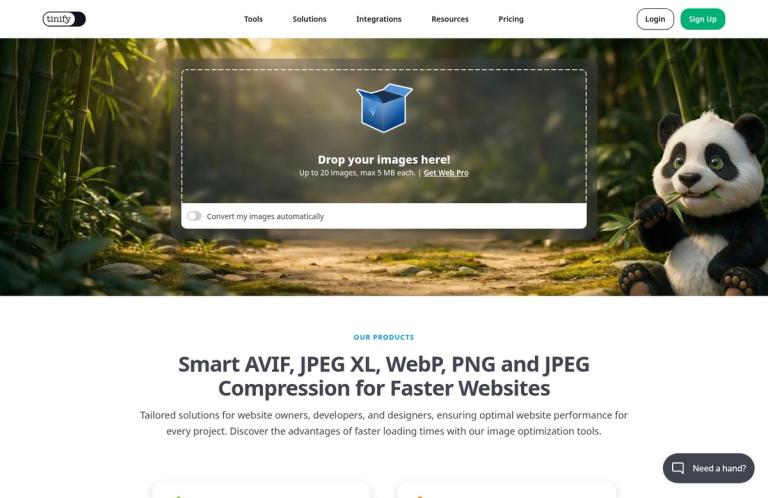
TinyPNG is Tinify’s browser-based tool for compressing and converting images. Its name suggests a PNG-only service, but the current web compressor supports a wider range of image formats, including AVIF, JPEG XL, WebP, JPG, PNG, and SVG. Tinify also lists animated PNG support in its format information. The service is aimed at people preparing finished images for websites and other digital projects: upload an image, let TinyPNG process it, then download the result. It is not a general-purpose image editor, and its browser tool should not be confused with Tinify’s separate Developer API.
The web compressor is the simplest way to try the service. On the official site, you can drag images into the upload area and choose whether to convert them automatically. Tinify says free web users can upload up to 20 images at once, with a maximum size of 5 MB per image. That is the stated limit for the browser-based compression workflow. The site separately says free users can convert up to three images. These are different allowances: a compression batch of 20 does not mean you can convert 20 images for free. The site does not explain the period or reset conditions for the three-image conversion allowance, so it is safest to treat it as a stated cap rather than assume it renews on a particular schedule.
Compression and conversion are related but distinct tasks. Compression reduces the file size of an image while keeping it in its existing format, whereas conversion produces another format. Tinify’s web tool combines these workflows, so a user can upload images and choose a format such as AVIF, JPEG XL, WebP, PNG, or JPEG. The site also says HEIC uploads are automatically converted to JPG. If you already have an image in a suitable format and mainly need a smaller file, compression is the relevant action. If a project requires another format, use the conversion option and account for its separate three-image free allowance.
TinyPNG describes its image processing as smart lossy compression. In its explanation of PNG optimization, Tinify says similar colors are combined through a process called quantization, which can reduce the amount of color information needed to represent an image. It also says unnecessary metadata is removed and that transparency is supported. For JPEG, Tinify describes analyzing textures, patterns, and colors before creating and fine-tuning a compressed file. These descriptions explain the company’s approach; they do not establish how much a particular image will shrink or guarantee that every output will look identical in every setting. Results depend on the source image and the intended use, so inspect the downloaded file when fine detail or color is important.
The web interface also offers a way to compare outputs in multiple formats. Tinify says that when you convert to multiple formats, it marks the smallest result with a green check mark. This may help when you are choosing among supported formats for a website, but the smallest file is not automatically the right choice for every project. Browser support, transparency, image appearance, and the requirements of the destination all matter. Treat the comparison as information to help you choose, then check the selected file in the context where it will actually appear.
There is a separate Developer API for automated image workflows. The API is intended for developers who want a server or other integration to process images, rather than manually upload files through the web page. Tinify says the API accepts uploads or image URLs and can return an optimized result. It supports compression and conversion for AVIF, JPEG XL, WebP, JPEG, PNG, and animated PNG, and accepts HEIC uploads that are compressed to JPEG. The API can also save processed images to Amazon S3 or Google Cloud Storage. These capabilities are API features, not evidence that the free browser tool offers equivalent automation or storage integrations.
API resizing and cropping extend the workflow beyond a straightforward format change. Tinify says the API can resize images after upload and generate the sizes needed from a single original. Its resizing options include proportional scaling and cropping to match a requested width and height. For cropping, the service describes detecting areas of interest and keeping them centered while removing less relevant parts of the image. That can be useful for creating thumbnails at different aspect ratios, but it is an automated crop, not a guarantee that every important detail will be framed exactly as desired. Tinify also describes a separate freestanding-object detection option for images of objects on plain backgrounds, such as product photos. It can add background space or remove extra space when changing the aspect ratio to keep the detected object visible. These are API functions; the web tool’s listed compression and conversion workflow should not be assumed to include them.
Metadata handling is another point where the web and API workflows differ. Tinify says the web compressor removes unnecessary metadata to reduce file size. Its site warns that the absence of metadata can result in a different displayed DPI or color profile when defaults are applied. The API, by contrast, offers options to retain selected metadata: for AVIF, JPEG XL, WebP, and JPEG, Tinify lists copyright information, GPS location, and creation date; for PNG, it lists copyright information and creation date. This is selective preservation, not a statement that every original metadata field is retained. If project requirements depend on particular metadata, check the API documentation and verify the resulting file rather than assuming the browser tool will preserve it.
The free API allowance is distinct from the free web allowance. Tinify’s Developer API pricing page states that an API account receives 500 free compressions each calendar month, without requiring payment details to get started. Unused free API compressions do not roll over; the allowance resets at the start of a new calendar month. These API compressions are not the same thing as the web tool’s limit of 20 images per batch or its separate allowance of three free conversions. An API key is used for the API workflow; it is not what defines or expands the free browser allowance.
Tinify publishes additional API pricing for usage beyond the monthly free allowance. The pricing page lists a charge of $0.009 for each of the next 9,500 monthly compressions and $0.002 for each of the next 10,000. It says users pay for successful compressions and describes usage-based billing without a subscription fee or minimum charge. The page also offers prepaid credit bundles. Because bundles are a separate option with their own terms, review the current official pricing page before deciding between usage-based billing and prepaid credits. These API details should not be mistaken for the pricing of the web subscriptions or for the price of the browser-based free tool.
The API also has its own file constraints. Tinify’s API documentation states a maximum file size of 500 MB, a maximum canvas size of 256 megapixels, and a maximum width or height of 150,000 pixels. Those are API limits, not the browser tool’s stated maximum of 5 MB per image. The difference matters when planning a process for large source files or automated work: an API workflow may accept files outside the web tool’s per-image size limit, subject to its own restrictions and the account’s usage terms.
For occasional manual optimization, the browser tool is the more direct starting point. It suits finished images that are within the web limits and need compression, or a small number that need conversion. A simple workflow is to upload the images, choose whether to convert them, review the output format and size, download the results, and check them before using them in production. If you need to prepare more than three conversions, the free conversion cap becomes a planning constraint even when the images would fit within a compression batch. Tinify presents Web Pro and Web Ultra as paid subscriptions for people who need additional web-tool capacity. It describes Web Ultra as offering unlimited access to the web tool, including compression and conversion; consult the official subscription details for current terms.
For repeat processing, automation, or more extensive image preparation, the Developer API is the relevant product to evaluate. Its documented options include compression, format conversion, resizing, cropping, selected metadata preservation, and direct storage integrations. The API’s 500 free compressions per calendar month provide a separate way to assess an automated workflow before paid usage, but they do not replace reading the technical documentation or testing whether its outputs suit a particular application. A development team should also consider how it will handle API keys, errors, output review, and the API’s file and canvas limits. Those requirements differ from the hands-on process of dragging a few images into a browser.
TinyPNG is less suitable when the task requires editing an image’s composition, changing text, or extracting text from an image. Tinify presents compression, conversion, resizing, and cropping as image-processing features; it does not describe the tool as an OCR service or a full image editor. Likewise, automated resizing and cropping are not the same as carefully reconstructing a page or preserving an exact design layout. If you need those capabilities, an editing or conversion product may be a better match. If you need a different kind of browser-based task, our reviews of Photopea, remove.bg, and Online-Convert cover distinct alternatives.
Tinify says images uploaded through the web tool are accessible only to the uploader and retained for a maximum of 48 hours before permanent deletion. This describes the company’s stated handling policy, not an independent security assessment. If your organization has rules for sensitive images, read the applicable terms and policies before uploading. Metadata deserves similar care: removing location, copyright, or creation information may be convenient for some web uses but undesirable for others. The API’s options for preserving certain fields may help where available, but confirm that the fields you need are supported for the format you use.
TinyPNG and TinyJPG are related names within Tinify’s image-compression service, not two independent services with unrelated tools. Tinify’s official site uses TinyPNG branding for its online compressor and describes support for both PNG and JPEG, among other formats. The company’s product history also says JPEG compression was added after the original PNG-focused tool. In practice, judge the current product by the formats and limits Tinify lists rather than assuming the name restricts it to PNG files.
Overall, TinyPNG offers a clear manual workflow for image compression and a separate conversion feature with its own free limit. Its web tool has a stated maximum of 20 images per batch and 5 MB per image; free conversion is limited to three images. The Developer API is a different product with 500 free compressions per calendar month, separate usage pricing beyond that allowance, and documented features for conversion, resizing, cropping, and selected metadata preservation. The web tool is most straightforward for small, occasional jobs. The API is the product to consider when processing must be integrated into software or requires its additional controls. Keeping these products and allowances distinct is essential when estimating cost and deciding which workflow fits.


