

What 123apps is
123apps is a collection of online tools for working with video, audio, PDF files, and other file formats. The official 123apps website presents separate tools by category, including video editing and recording, audio adjustments, PDF actions, and format conversion. It is a suite rather than a single all-purpose editing workspace: choose the specific tool that matches your task, then check its options before starting.
The breadth is useful if you occasionally need different kinds of file tasks and would rather begin in a browser. The official menu names familiar actions such as trimming audio or video, merging clips, compressing PDFs, and converting documents. It also includes more focused choices, such as changing audio pitch, stabilizing video, extracting archives, and converting fonts. These named tools make the service easier to assess than a generic promise of “online utilities”: you can look for the action you actually need.
The product’s free boundary deserves attention. The official pricing page says all apps are free to use, but limits apply to file size and operations per day. It also lists Free at $0 and Premium at $6 per month or $48 once a year. Those statements distinguish free access from unrestricted use. The pricing page does not give a precise free operation allowance, so someone planning repeated or time-sensitive work should check the current terms for the selected app rather than assume a particular daily quota.
Video tools
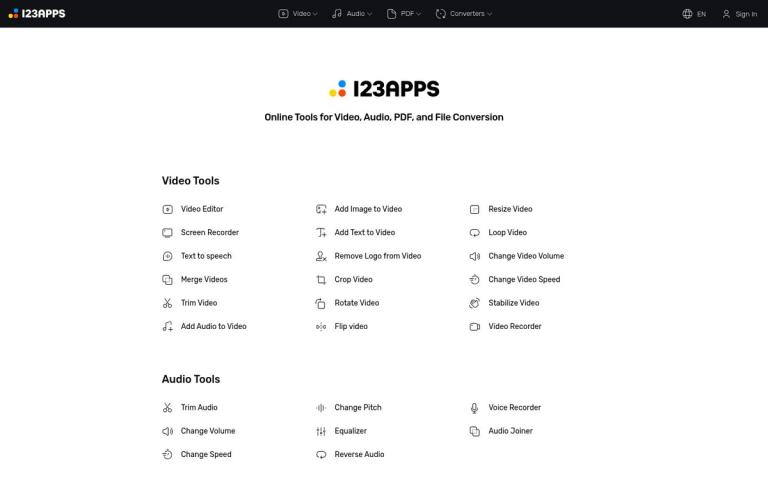
The official site lists a video editor, screen recorder, and video recorder, alongside tools for merging and trimming video. Its menu also includes adding audio, images, or text to video; removing a logo; cropping, rotating, flipping, and resizing; looping; changing volume or speed; and stabilizing footage. This makes 123apps relevant to a range of straightforward browser-based video tasks, from adjusting a clip to combining material or adding a simple element.
These are distinct jobs, not evidence that every tool offers the controls of a full desktop editing suite. A person who needs to trim a clip has a different requirement from someone assembling a longer project or recording their screen. As practical advice, identify the specific change you need and open that tool’s page to check its controls and file requirements. For example, if you are preparing a short clip for a presentation, you might look for the trim, crop, or text tool, then review the exported file in the presentation software you plan to use. That example describes a possible workflow, not a claim that a particular file was tested.
The listed “Remove Logo from Video” tool should also be understood as a named function, not a general promise about every kind of object removal or every result. If an output matters, keep the original and inspect the finished video before sharing it. Check that the picture, sound, timing, and playback suit the destination. Those are sensible checks for video work in general; the official menu does not specify quality settings or guarantee a particular output.
The screen recorder and video recorder are separate entries in the official catalogue. If recording is your goal, start with the one that sounds closest to your task and review the page for the controls it actually provides. Do not assume that a recording tool includes advanced production, streaming, or team features merely because it sits alongside editing tools. The product’s published menu establishes that these tools are offered, but does not set out a detailed specification for each one.
Audio tools
123apps lists tools to trim audio, change volume, speed, or pitch, apply an equalizer, reverse audio, record voice, and join audio files. The official pricing page also names AI audio processing as a Premium benefit. The available feature list therefore points to practical editing and adjustment tasks, as well as recording and joining, rather than only audio format conversion.
A useful way to approach this group is to match the tool to the intended change. For example, if you are preparing a spoken recording for a presentation, you might use a trim tool to remove unwanted sections, adjust the volume if needed, and listen to the saved result on the device where it will be played. If you are combining multiple audio pieces, the Audio Joiner is the more relevant starting point. These are workflow suggestions based on the named tools, not reports of hands-on testing or assurances about how a particular recording will sound.
The menu confirms that an Equalizer and controls for pitch and speed are listed, but it does not explain their ranges, presets, or technical behavior. If those details matter—for example, when preparing audio to meet a specific delivery requirement—check the individual tool before committing to it. Keep an untouched copy of important source material, and listen to the output rather than relying only on a visual progress indicator.
PDF tools and conversion
The PDF section includes split, merge, compress, unlock, protect, rotate, and add-page-numbers tools. The site also names conversions from PDF to Word, Excel, JPG, PNG, and HTML, plus conversions to PDF from Word, JPG, Excel, PowerPoint, and PNG. These are specific published options and make the service relevant both to basic PDF page tasks and to several common document or image conversions.
PDF conversion and PDF editing are not interchangeable. Converting a PDF to Word, for instance, is a format change; it does not by itself promise a perfect recreation of the source layout. If you need to share, edit, or archive a converted document, compare the output with the original and check the elements that matter, such as tables, images, page breaks, and text order. This is general conversion advice, not a claim about the accuracy of 123apps’ conversion results.
The separate PDF actions suit different needs. A person combining several documents might look for Merge; someone reducing a file for easier sharing might try Compress; and someone changing page order or removing pages might begin with Split or Rotate, depending on the task. These examples describe how to choose from the official menu. They do not imply that all actions are available inside one editor or that they preserve every document feature. Check the chosen tool’s page and inspect the result before relying on it.
The listed conversion options are useful to know, but they should not be mistaken for optical character recognition. The official catalogue names format conversions such as PDF to Word and PDF to Excel, but the supplied product information does not identify an OCR feature or promise that scanned pages become editable text. If you need text recognition from a scan, look for a service that explicitly offers OCR and check that it meets your needs.
Other converters and file tasks
Beyond the PDF-specific options, 123apps lists audio, video, image, document, font, archive, and ebook converters, as well as an archive extractor. This spread may help if you have a file-format task that does not fit the headline video, audio, or PDF categories. It also means the service can be a starting directory: select the converter category that fits, then confirm that the exact input and output formats you need are available in that tool.
A converter’s category does not establish every supported format, setting, or output behavior. If you are converting a document for a colleague, for example, check that the target format is offered and open the converted file in the software they will use. For an image intended for a website, check that the saved file is in the format required by the publishing system. These are practical workflow examples, not test results. They illustrate why checking the actual app and output is more useful than assuming that a broad category covers every case.
The site’s listed tools also have different purposes even when they work with the same kind of file. A video converter changes a video’s format, while the video editor and trim tool are listed separately. Similarly, PDF-to-Word is a conversion choice, while Merge and Compress are PDF actions. Choosing by the action you need helps avoid expecting a converter to edit content or an editor to provide an unrelated format change.
Free access and Premium
The pricing page lists a Free plan at $0 and says all apps are free to use, subject to file-size and daily-operation limits. It lists Premium at $6 per month or $48 once a year. The pricing page also says Free includes ads and Premium does not. Its upgrade information describes Premium as access to 51 apps, unlimited files, opening files up to 10 GB, saving videos without length limits, and AI audio processing.
Those Premium details are useful when deciding whether to compare the paid plan, but they do not turn the free offer into unlimited use. The exact free operation allowance is not stated on the page. For that reason, a quick occasional job may be a reasonable place to start with Free, while someone who expects to process files frequently should review the current pricing and app terms first. If a free-use restriction interrupts a task, compare the Premium terms directly rather than assuming which particular limit a subscription changes.
The pricing table includes additional figures, but it is not sufficiently clear which displayed file limits belong to which plan. This review therefore does not treat those figures as confirmed Free allowances. The direct free-plan statement—file-size and operations-per-day limits—is the clearest guide for free users. A useful habit is to check the selected tool and current pricing before uploading a large file or planning a batch of repeated operations.
Premium is presented as a subscription covering the apps, with monthly and annual payment choices shown. The page also says users can cancel at any time. Before subscribing, check the live price and terms on the official page, especially if you are comparing billing periods or need a particular benefit. A paid plan can be worth considering for its listed features, but the right choice depends on the task and how often you use the tools.
A practical way to choose and work
Start by naming the outcome you want: edit a clip, join audio, compress a PDF, convert a document, or change a file format. Then use the official category menu to find the matching app. Read its description and check the available inputs, outputs, and controls before uploading. This is more reliable than choosing by the broad “video,” “audio,” or “PDF” label alone.
Next, consider the file and the destination. A file that must be edited later may call for a different output than one intended only for viewing. A clip going into a presentation should be checked in that presentation; a converted document should be opened in the application that will use it. If the service shows a limit or a plan prompt, use the current pricing details to decide whether Free suits the task or whether Premium is worth comparing.
For a one-off task, a simple sequence is often enough: select the correct app, choose the source file, make the required change using the controls shown, save the result, and open it to check that it works. Keep the original until you are satisfied with the new file. For a repeated task, note which app and settings meet your needs, but check current limits again if the file type, size, or volume of work changes. This is advice for a careful workflow, not a claim that all apps share the same interface or steps.
Privacy and file handling
The official website links to a Privacy page. Read the current policy and applicable terms before uploading anything sensitive, particularly if the file contains personal, confidential, or regulated information. The product and pricing pages described here do not state a specific automatic-deletion period or retention schedule, so do not assume one. Consider whether an online file service is appropriate for your material, and use a non-sensitive sample when you want to assess a workflow.
Alternatives
The most relevant alternative depends on the task, since 123apps is a multi-category suite. For PDF actions, compare PDFescape, iLovePDF, or PDF24 Tools. For converting files, Online-Convert is another option to investigate. If your task is image editing rather than file conversion, Photopea may be relevant. Check each service’s current features and limits against the job you need to complete; none should be treated as a direct replacement for every 123apps tool.
Verdict
123apps is a broad collection of browser-based tools with clearly named options for video editing and recording, audio adjustment, PDF actions, and multiple kinds of conversion. Its official catalogue is especially useful for people with occasional, practical file tasks who want to find a matching utility without starting with a dedicated desktop program.
The free plan is real, but it is not unrestricted: 123apps says free use has file-size and daily-operation limits, without publishing an exact operation allowance on the pricing page. Premium is listed at $6 per month or $48 once a year and is described with benefits including no ads, unlimited files, and access to its apps. Check the current terms for the specific tool, choose it for the action it actually lists, and inspect important outputs before relying on them. That makes 123apps a reasonable place to start for varied, occasional tasks, while frequent or specialist work merits a closer comparison of the relevant paid options and alternatives.


