

What Zamzar does
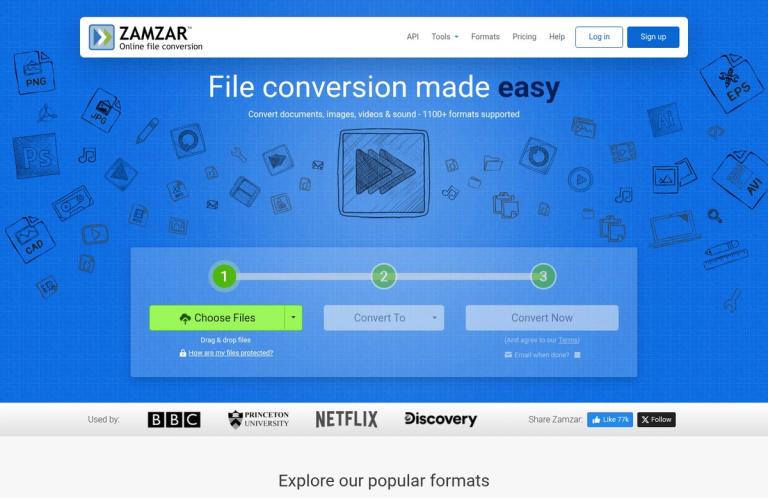
Zamzar is an online service for converting files between supported formats. Its homepage presents conversion for documents, images, videos, and sound, and advertises more than 1,100 formats. The service also has compression tools and a desktop app for Windows and Mac. These options make it a broad utility to consider when a file needs to work in a different application or be delivered in another format.
The headline format count describes the overall catalogue, not every possible source-and-destination pairing. Zamzar’s FAQ says it supports thousands of formats, while the homepage describes its offering as 1,100-plus formats; the practical point is to check whether the exact conversion you need appears in the current format list or converter. A conversion option also does not guarantee that every feature of the original will carry over unchanged. Keep the original and check the result in the application where you intend to use it, especially when layout, editability, or media playback matters.
For occasional personal tasks, Zamzar’s web converter is relatively direct: choose a file, choose an output format, and start the conversion. The official workflow also accepts files from a URL and from Box, Dropbox, Google Drive, or OneDrive. Users can optionally provide an email address to receive a download link. That range of input methods can be useful if the file is not already on the computer being used, although the choice of where to retrieve a file does not change the free service’s limits.
The free web service is capped at two conversions and two compressions in any 24-hour period. Free uploads are generally limited to 50 MB, subject to exceptions; when multiple files are uploaded together, their combined size must be less than 50 MB. Free converted or compressed files are kept for a maximum of 24 hours. Those are meaningful boundaries: Zamzar is useful for a small, occasional job, but the free web offer is not an unlimited batch service or a place to leave outputs for later.
Conversion options and use cases
Everyday format changes
The central Zamzar use case is converting a supported file to another supported format. Its official site lists converter categories for documents, images, audio, video, e-books, CAD files, archives, and 3D formats. It also highlights popular conversions such as PDF to DOC or JPG, DOC to PDF, MP4 to MP3, and MOV to MP4. These examples illustrate the breadth of the service; they are not a promise that every file within a category will convert successfully in every circumstance.
A practical way to use the catalogue is to start with the file you have and the format required by the person, device, or application that will receive it. Check that the desired output is offered before uploading. For example, if a colleague requests a particular document format, confirm that Zamzar lists that destination for your source file, then convert a copy and inspect the result before sending it. This is advice for choosing and checking a conversion, not a claim about a tested outcome.
Conversion can help with compatibility, but it is not automatically the right tool for editing. If you need to revise text, adjust a design, or preserve a complex layout, make sure the resulting file is editable in the software you plan to use. Zamzar’s FAQ notes that converting a scanned PDF or image into an editable Word document usually requires specialist OCR; it says its OCR conversion is currently offered for PDF to TXT. That makes the distinction important: a general file conversion is not the same as OCR, and neither should be assumed to reproduce a document’s original layout perfectly.
Compression and other file tools
Zamzar offers compression separately from conversion. The FAQ describes its compression tool as a workflow in which you choose a file and download the compressed result. It lists compression options for multiple file types, including audio, documents, images, and video. The free compression allowance is up to two files in any 24-hour period, separate from the two free conversions in the same period.
Compression does not guarantee that every output will be smaller. Zamzar’s FAQ explains that a file may already be compressed as much as possible. If reducing file size is the goal, compare the output size with the original before replacing or sharing the source. The site does not promise a particular reduction for every file, so treat compression as an option to try rather than a guaranteed size-saving result.
The official tools menu also lists functions beyond basic format conversion and compression, including splitting, rotating, converting to text, extracting sound from video, changing media speed or volume, and viewing selected document and media formats. These are distinct tools with their own format and task conditions; their presence does not mean they are included in every conversion workflow. Check the relevant tool page for the file type and operation you have in mind. For text extraction specifically, Zamzar identifies image-to-text, audio-to-text, and video-to-text tools in its menu, while its FAQ describes the limited OCR capability noted above.
Choosing an input route
For files on your computer, the homepage’s three-step conversion tool asks you to select a file, choose an output format, and start converting. You can also provide a file URL, or select a file from Box, Dropbox, Google Drive, or OneDrive. When using a cloud drive, Zamzar’s FAQ describes authorizing access and choosing the file before selecting a destination format. If you use this route, check the account and file you have selected before starting the job.
Email conversion is another option for simple format changes. Zamzar’s FAQ says to attach the file and send the message to an address based on the destination format; it gives PDF-to-DOC as an example. This route has smaller stated per-file limits than the website: the free email service allows files up to 1 MB each. Email conversion is therefore a separate route with separate conditions, not a way to bypass the web service’s file boundaries. The FAQ also says multiple destination formats can be requested by including the corresponding addresses.
A practical workflow
- Identify the specific job: a format change, compression, or another tool such as splitting or extracting media. Open the matching option on the official Zamzar website and confirm that it supports your file type and intended result.
- Check the free allowance before selecting files. The web service allows up to two conversions and up to two compressions in any 24-hour period. The general free upload limit is 50 MB, with exceptions; for multiple files uploaded together, their combined size must be less than 50 MB.
- Choose an input route. You can select a file from your computer, use a URL, or select one from a supported cloud-storage service. If you prefer email conversion, check its separate free per-file limit of 1 MB in the FAQ.
- Select the destination format in the converter and start the job. If your preferred format is missing, check the current format list rather than assuming the converter supports that pairing. For batches in the desktop app, Zamzar says all selected files must be convertible to the same single output format.
- Download the output and open it in the application or device where you plan to use it. Check the parts that matter to your task: content and layout for a document, or successful opening and relevant content for media. Keep the original until you are satisfied.
- Download free outputs promptly. Zamzar says free converted or compressed files are stored for a maximum of 24 hours. If you provide an email address in the web converter, the FAQ says it can send a link to the converted file; the link does not extend the stated free storage period.
These steps are practical advice based on the service’s described workflow. They are particularly useful when the file is important or when the output will be passed to somebody else: confirm the destination format, preserve the original, and check the output before relying on it.
Free service, desktop app, and paid accounts
Zamzar has distinct limits for its free web service, free desktop app, email conversions, and paid accounts. Keeping those offers separate avoids treating one quota as if it applied everywhere.
| Option | What Zamzar says |
|---|---|
| Free web service | Up to two conversions and two compressions in any 24-hour period. Uploads are generally limited to 50 MB, subject to exceptions; combined uploads must be less than 50 MB. Free outputs are stored for a maximum of 24 hours. |
| Free desktop app | Up to 25 conversions in total for files up to 50 MB. This is a total allowance, not a daily web-service quota. The app works on Windows and Mac and requires an internet connection. |
| Free email conversion | Up to 1 MB per file. This is a separate route with its own size limit. |
| Paid accounts | Zamzar says paid accounts provide unlimited daily web conversions and compressions, larger uploads, the ability to upload more files at once, file storage without the free service’s expiry limit, and priority during busy periods. |
The FAQ lists paid upload-size tiers of up to 200 MB, 400 MB, or 2 GB, depending on the plan. It also says paid plans allow 25, 50, or 100 simultaneous uploads, depending on the plan. These are account-specific features, not free-service allowances. Exact paid prices are available through Zamzar’s pricing page; check that page for current amounts and subscription details before choosing a plan.
The free desktop allowance can suit someone who prefers a Windows or Mac app and only needs a small number of conversions. It is still an online conversion service: Zamzar says the app uploads a copy of the original file for conversion and downloads the result to the computer. Installing the app does not make processing offline or keep the file on the computer throughout the conversion.
Limits and things to check
The daily free web allowance is the main limitation for anyone processing several files. Two conversions and two compressions in a 24-hour period may be enough for occasional tasks, but the two categories should not be treated as one unlimited pool. The 50 MB upload figure also has exceptions, and multiple files uploaded together must fit within a combined limit of less than 50 MB. If your task is larger or more frequent, check the current paid-account options before starting.
The homepage’s format count is a catalogue headline, not a compatibility guarantee. The available choices depend on the particular source and destination. Zamzar’s desktop-app FAQ explains that unsupported conversions will not appear in the available format list. That is a useful way to think about format selection across the service: verify the exact pair in the current converter rather than inferring support from a general list of categories.
Conversion results also depend on the file and the formats involved. Zamzar’s FAQ notes that a file may fail if it is corrupt, password-protected, or copyright-protected, such as by DRM. It also explains that a converted file may not open if the computer lacks the right software or version. If a document needs to remain editable, scanned content may need OCR rather than ordinary conversion. These are practical reasons to retain the original and check the output before depending on it.
For timing, Zamzar says conversion or compression usually takes less than 10 minutes after upload, often less, but that the time can depend on file size and complexity. Upload and download speeds can also affect the overall wait. This is a stated typical timeframe, not a guarantee for every job.
Privacy and file handling
Using the online converter means providing a file to Zamzar for processing. The company says free converted or compressed files are stored for a maximum of 24 hours, and its homepage says users can delete files sooner. Zamzar’s FAQ says the original file is deleted from its servers after conversion; if processing fails, it says the original is stored for a maximum of seven days to allow time for assistance. Paid-account outputs have different handling: Zamzar says they remain in the account’s My Files area until the user deletes them or until 35 days after the paid account closes.
These are statements from Zamzar about its file handling. They are not an independent security assessment or a blanket assurance that every file is suitable for upload. If a file is confidential, contains personal information, or is subject to workplace or legal requirements, review the provider’s current privacy information and decide whether online processing is appropriate. The desktop app also uploads a copy of the original, so it should not be treated as an offline or local-only option.
Alternatives
Choose an alternative by the job you need done. For PDF-focused tasks, iLovePDF and PDF24 Tools are options to compare. If you need to edit or fill a PDF rather than convert formats, PDFescape may be more relevant. For broader conversion needs, compare Zamzar’s format selection with Online-Convert for the exact file pair you need. These are tools to investigate for their own features and limits, not claims that they match Zamzar’s offer.
If the task is image editing rather than changing a file format, Photopea is a more task-specific alternative to consider. Whatever you choose, compare the available input and output formats, file-size boundaries, free quotas, and file-handling terms. A focused tool can be a better fit than a general converter when the job involves editing, OCR, or another specialized operation.
Verdict
Zamzar is a useful option for occasional online file conversion and compression across a wide range of file categories. Its web converter supports computer files, URLs, and several cloud-storage sources, while email conversion and the Windows and Mac desktop app provide additional ways to start a job. Its official site also lists separate utilities for tasks such as splitting, rotating, and extracting sound from video.
The free web boundary is clear enough for planning: up to two conversions and two compressions per 24-hour period, with a general 50 MB upload limit subject to exceptions. Free outputs are stored for a maximum of 24 hours. The desktop app’s 25 free conversions are a separate total allowance, and the app still uploads files for online processing. These distinctions matter more than a broad format count when deciding whether the free offer suits a particular job.
Consider Zamzar when the exact conversion is available, the file fits the relevant limit, and you are prepared to check the output. For high-volume use, sensitive files, scanned-document OCR, or work requiring a specialized editor, compare the relevant paid plan or a tool designed for that specific task. Check current official format, pricing, and privacy information before relying on a particular option.


