

What it is
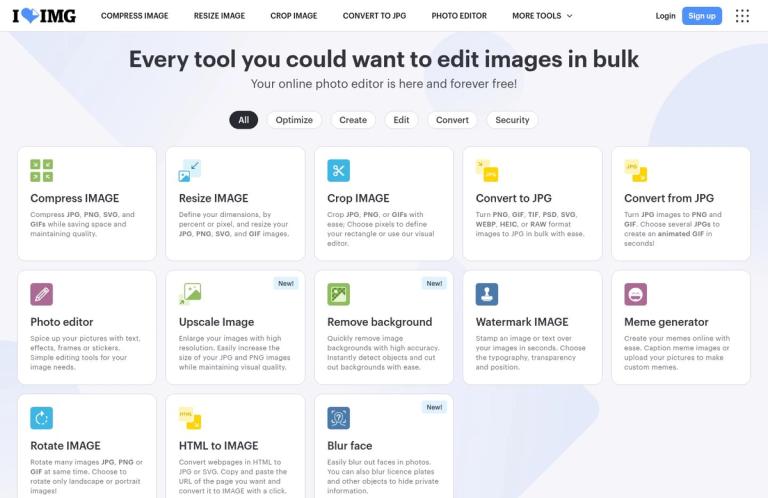
iLoveIMG is an online collection of image tools for jobs such as compressing, resizing, cropping, converting, and editing files. Its homepage presents the service as an online photo editor and lists both familiar utilities and more specialized options, including image upscaling, background removal, watermarking, face blurring, and meme creation. Rather than treating it as one all-purpose editing application, it is more useful to think of iLoveIMG as a set of separate tools, each aimed at a particular image task.
The official starting point is iLoveIMG. The homepage links directly to tools such as Compress IMAGE, Resize IMAGE, Crop IMAGE, and Convert to JPG. It also lists Convert from JPG, Upscale Image, Remove background, and Photo editor. These are useful entry points when you already know the job you need done.
The practical appeal is convenience: you can choose a focused tool rather than begin by learning a large editing application. That makes iLoveIMG worth considering for everyday image preparation, such as making a file smaller before uploading it, changing its pixel dimensions, trimming its composition, or converting a supported image to JPG. Its breadth also means it is not limited to those basic tasks: the homepage describes tools for adding watermarks, blurring faces or other objects, and removing backgrounds. The listed features establish that these tools are offered, but not that every tool has the same free allowance or suits every production requirement.
Choosing the right tool
Compression, resizing, and cropping
Use compression when the image needs to take up less storage or fit a file-size requirement. The homepage says the compression tool handles JPG, PNG, SVG, and GIF images, and describes its purpose as saving space while maintaining quality. That is the vendor’s description, not a guarantee that every compressed image will look unchanged or meet a particular file-size target. As practical advice, compare the resulting file size and appearance before using the output, especially when fine detail matters.
Resizing changes image dimensions. iLoveIMG says its resize tool accepts JPG, PNG, SVG, and GIF files and lets users define dimensions by percentage or pixels. This makes it a relevant option when a website, listing, presentation, or form calls for a particular image size. Check the resulting dimensions against the destination’s requirements. A change to pixel dimensions is not the same as a crop: resizing works on the image dimensions, while cropping removes part of the visible composition.
The crop tool is listed for JPG, PNG, and GIF files. The homepage describes choosing the crop rectangle in pixels or using a visual editor. Cropping is useful when the full image is not required or the framing needs adjustment. Before replacing the original, inspect the crop to make sure important people, objects, text, or other details have not been cut off. These workflows are general recommendations for choosing and checking an image operation, not reported results from hands-on testing.
Conversion and editing
The conversion tools are described more specifically than a generic promise to convert images. Convert to JPG accepts PNG, GIF, TIF, PSD, SVG, WEBP, HEIC, and RAW images, according to the homepage. That confirms HEIC-to-JPG as a listed use, alongside several other input formats. Convert from JPG turns JPG images into PNG or GIF, and the homepage also says that several JPG files can be used to create an animated GIF. Check the live tool for the accepted files and choices relevant to your particular job before starting a format-dependent workflow.
Conversion changes file format; it does not by itself promise that the output will have the same properties as the source. If your job depends on image quality, color, transparency, metadata, or compatibility with another application, inspect the converted result and test it in its intended destination. The homepage confirms certain input and output formats, but it does not establish that every property is preserved in every conversion.
The Photo editor is described as offering text, effects, frames, and stickers. That makes it a plausible fit for straightforward decorative edits, but the listed description does not establish a full professional editing environment or advanced capabilities such as layer-based production. For a small adjustment, a focused browser tool may be more convenient than installing a larger application. For intricate artwork or a repeatable design process, compare the controls available in the editor with the ones your work actually requires.
More than basic image preparation
The homepage also lists Upscale Image, which it describes as enlarging JPG and PNG images while maintaining visual quality. It lists Remove background for cutting out image backgrounds, and Blur face for blurring faces, licence plates, or other objects. Other options include Watermark IMAGE, Rotate IMAGE, Meme generator, and HTML to IMAGE. HTML to IMAGE is described as converting webpages in HTML to JPG or SVG from a URL.
These tools make the service’s scope broader than compression and format conversion. They also make it important to identify the exact tool and its plan conditions rather than assuming that the homepage’s general free-editor statement applies equally to the whole collection. If you need background removal, for example, go to that tool’s own page and check its current access and limits. If the result is for publication or a commercial design, review it at the size and quality that matter for its intended use.
A sensible workflow
Start by defining the output you need. Decide whether the problem is file size, pixel dimensions, framing, format, or a particular edit. Then choose the corresponding tool from the official site. A photo that must fit a pixel-dimension requirement calls for resizing; one that needs different framing calls for cropping. A file that must be JPG calls for conversion, provided its source format is supported. Keeping these jobs distinct makes it easier to choose the right operation and check whether it solved the problem.
Before processing, confirm that the selected tool accepts your file type and that its controls suit your goal. The homepage provides format details for several tools: compression and resizing list JPG, PNG, SVG, and GIF; cropping lists JPG, PNG, and GIF; and the conversion tools list their stated input and output formats. Do not assume one tool accepts every format accepted by another. For a destination with strict requirements, check the destination’s rules too; a tool’s name alone does not show that its output will satisfy a particular website or application.
Process a noncritical image first if you are setting up a workflow you expect to repeat. Inspect the result rather than relying on the fact that the operation completed. Check dimensions after resizing, framing after cropping, file size and visible detail after compression, and compatibility after conversion. Keep the original until you are satisfied with the output. This is practical workflow advice, not a claim about the service’s storage or file-deletion practices.
For batches, check the current plan and tool page before estimating how much you can process. The homepage describes some operations as available in bulk, and the pricing page includes a comparison table with tool-specific figures. However, those figures are not clearly associated with the plan columns in the published comparison, so they are not a reliable basis for quoting a free limit for an individual tool. The clear free-plan statement is that processing is limited. If you are planning a large or time-sensitive job, check the live terms and the limit shown for the specific tool before depending on it.
Free plan and pricing
The official pricing page lists Basic as free. Its stated free features are access to essential iLoveIMG tools and limited document processing. That establishes a usable no-cost entry point, but it does not mean that every tool is included or that the amount of processing is unlimited. The homepage calls its online photo editor free; the pricing page’s more specific plan description is the better guide when deciding whether the free plan suits a wider image-processing task.
The pricing page also describes Premium as providing full access to all iLoveIMG tools, unlimited document processing, higher image-processing capabilities, AI tools, an ad-free experience, and priority customer support. Its FAQ says Premium unlocks unlimited image processing, removes ads, and gives priority support. The wording varies between those sections, so treat the claimed unlimited processing as the vendor’s stated Premium benefit and check the current plan terms for the specific task you have in mind. The page also lists Business for growing teams, with customized pricing and additional team-oriented provisions.
One important caveat concerns the comparison table. It displays figures alongside individual tools and shows per-task file sizes, but the table’s plan associations are not clear enough to confidently match those figures to Basic, Premium, or Business. They should not be presented as confirmed free-plan caps. For a purchase decision, consult the live pricing page and the relevant tool’s current interface. For occasional work, begin with the free plan and see whether its access and processing limit meet your need. For recurring or higher-volume work, compare Premium’s stated benefits with the current terms and your actual workload rather than assuming a specific allowance.
Privacy and handling files
The pricing page states that images are handled securely and that the service is designed to meet security and performance standards. Its FAQ says files are fully encrypted and processed securely, and refers to international data-protection regulations including GDPR. These are iLoveIMG’s own statements, not an independent security assessment. The pricing material does not specify a file-retention period or establish when processed files are deleted.
Before uploading personal, confidential, or commercially sensitive images, review iLoveIMG’s current privacy policy and the terms relevant to the tool you plan to use. Consider whether using a third-party online service is permitted for that file under your own requirements. Do not infer a particular deletion schedule from a general security statement. For ordinary tasks, retaining the original and checking the processed output before using it are sensible precautions; neither practice is a claim about how the service stores files.
Alternatives
If you need a more editor-oriented workflow, Photopea is a relevant alternative to compare. If the key job is removing a background, consider Remove.bg and check its current feature and plan details. For broader file-format conversion, Online-Convert is another service to evaluate against the formats you need. If the work is mainly about PDFs rather than images, iLovePDF is the more relevant product in the same family.
These are comparisons to investigate, not claims that the products have the same capabilities, free limits, or file-handling terms. Choose based on the operation, formats, processing volume, and output requirements that matter for your work. For image processing at scale, iLoveIMG also advertises an API for integrating image tasks into a product or workflow; check its separate documentation and terms if you are considering automation rather than one-off browser use.
Verdict
iLoveIMG is a broad, task-based online image service. Its official pages confirm tools for compression, resizing, cropping, conversion, editing, upscaling, background removal, and more, with useful format details for several core operations. It is a reasonable place to start with a clearly defined image job, especially when you want a browser-based utility rather than a larger editing application.
The free Basic plan is real, but its stated processing is limited. Premium is advertised with broader access and unlimited processing benefits; the exact free allowance for each tool should not be inferred from the pricing comparison table. Check the relevant tool and current plan details before committing to a large batch, and inspect outputs where format, dimensions, or appearance matter. For occasional image preparation, that is a practical way to assess whether iLoveIMG fits. For advanced editing, sensitive files, or dependable high-volume work, confirm the relevant controls, terms, and plan before relying on it.


