

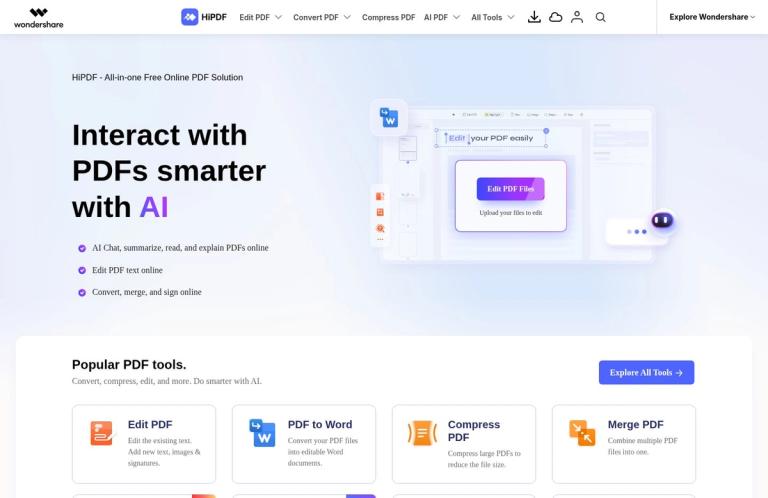
What HiPDF is
HiPDF is a browser-based service for working with PDF files and images. Its official site brings together tools to convert, edit, compress, merge, crop, split, organize, and protect PDFs, alongside image utilities and AI features. The central appeal is convenience: visitors can choose a particular document task on the site without first installing a desktop application. HiPDF also advertises free online conversion and editing, but its pricing page clarifies that free users have limited access to most PDF and image tools. Free access is therefore a starting point, not a promise that every feature or amount of use costs nothing.
The site presents distinct tool groups rather than one single all-purpose workflow. Its conversion tools cover files going into PDF, such as Word, JPG, Excel, and PowerPoint, as well as conversions from PDF to formats including Word, JPG, Excel, PowerPoint, and HTML. Other listed tasks include merging, compression, cropping, splitting, extracting images, rearranging pages, signing, redacting, and password protection. Image tools include compression, cropping, resizing, and conversion. Whether a particular option is accessible without payment can depend on the tool and current access terms, so check the selected page before planning a recurring or time-sensitive job.
HiPDF also promotes AI tools such as Chat with PDF, AI PDF Translator, PDF Proofreader, AI Detector, AI Read, AI Rewriter, and AI Explain PDF. These are a separate part of the service from ordinary conversion or editing. A PDF-to-Word converter changes a file into another format; it does not, by itself, recognize text in a scan. HiPDF advertises OCR for converting scanned PDFs into editable formats, while the pricing FAQ says OCR is among the advanced features unlocked with a Pro license. If text recognition is essential, confirm access under the plan you intend to use rather than assuming that free conversion includes OCR.
PDF conversion and document workflows
Conversion is one of HiPDF’s clearest use cases. The site lists tools for creating PDFs from Word, JPG, Excel, PowerPoint, HTML, PUB, and other files, and for converting PDFs into Word, JPG, Excel, PowerPoint, HTML, and other formats. Its homepage specifically describes PDF to Word as a way to create editable Word documents. This makes HiPDF worth considering when you need to move a document into a format that is easier to revise, share, or use in another application.
The format list is useful for checking whether a workflow may fit, but a listed conversion does not guarantee that the result will reproduce every detail of the original. Documents with columns, tables, unusual fonts, forms, or complex page layouts may need extra review after conversion. That is a practical quality-control step for any document conversion service, not a claim about a particular HiPDF test result. Keep the original file and compare important pages before using the converted version for publication, submission, or further editing.
Scanned files call for a separate decision. The site advertises OCR that can convert scanned PDFs into editable Word, Excel, PowerPoint, and EPUB documents. OCR means recognizing text in page images; it is not interchangeable with converting an already text-based PDF. The pricing FAQ places OCR among premium advanced features, so do not treat it as a confirmed free function. If you need searchable or editable text from a scan, check the current plan and OCR tool details first, then proofread the recognized text against the scanned page. Names, figures, symbols, and columns are especially worth checking in a document where transcription accuracy matters.
Editing, organizing, and protecting PDFs
HiPDF describes editing tools for changing existing text, adding new text, images, and signatures, and adjusting text color or font size. The site also lists options such as replacing, copying, or deleting text, rotating pages, and cropping margins. These functions may suit a small correction or a document that needs a signature or page adjustment without moving to a desktop editor. For a specific job, select the relevant tool and check whether its controls and download option are available at your access level.
Organization tools address jobs involving more than a single change to page content. HiPDF lists merging PDFs, splitting them, extracting images, rearranging pages, and signing or sharing documents. Its merge page description says files can be combined in a chosen order, and the crop description mentions selecting an area or exact measurements. These are helpful distinctions when deciding which tool to open: combining files is different from rearranging pages within one document, and cropping page margins is different from editing text. After processing, inspect page order, boundaries, and any content close to the edges.
The service also lists protection tools, including password protection, unlocking, redaction, and signing. Treat these as separate operations with different purposes. A visible mark or deleted text is not automatically the same thing as secure redaction, and adding a signature is not the same as applying a password. If a document contains confidential material or has legal, regulatory, or contractual significance, confirm that the specific feature meets your requirements and read HiPDF’s current privacy and security information before uploading it. Keep a local original and verify the result before sharing.
Compression and image tools
HiPDF’s homepage describes compressing large PDFs to reduce file size and offers high, medium, or low compression levels. This can be useful when a document is difficult to send or needs to meet a file-size requirement. Compression involves a trade-off: if image quality matters, compare the processed file with the original at a readable zoom level and check diagrams, small print, and photographs. Choose a level according to the intended use rather than assuming that the smallest result is always the best one.
The site also lists image compression, cropping, resizing, and conversion tools. Those can help when an image needs to be adjusted alongside PDF work, but the available tool names do not establish every supported input, output, or setting. Check the specific image tool for the formats it accepts and the controls it offers. For tasks involving several file types, it can be convenient to handle them on one site; for a highly specific format or editing requirement, compare the available options before uploading.
AI tools and their stated allowances
HiPDF’s AI menu includes document-focused features such as Chat with PDF, translation, proofreading, reading, rewriting, explanation, and mind-map generation. The homepage describes AI features for asking questions about PDFs, summarizing, explaining, and translating content. These functions are distinct from mechanical file operations: they can help you interact with document content, but their presence does not establish that an answer or rewrite is suitable without review. For important decisions, check AI-produced statements against the document itself and other reliable sources.
The pricing FAQ gives specific trial allowances for two AI features. Chat with PDF allows 50 questions in total, with a maximum of 20 pages per PDF. The AI Detector trial covers 5,000 characters in total, with a maximum of 5,000 characters per PDF. These are bounded trial amounts, not unlimited access. They should also be distinguished from the paid monthly AI offer: the pricing page advertises 1,000 AI uses per month for Chat with PDF and AI Read, with PDFs up to 2,000 pages and 100 MB and a 2,000-character chat input limit. Check the current offer details to confirm which listed features and limits apply to the plan you are considering.
A sensible way to evaluate an AI feature is to start with a low-stakes document and a question whose answer you can check. For example, you might ask Chat with PDF to identify a section heading or summarize a short passage, then compare the response with the relevant pages. That is a suggested evaluation workflow, not a report of testing HiPDF. Avoid relying on generated summaries or detector results as the sole basis for a high-stakes judgment. The listed trial counts describe access volume; they do not guarantee accuracy or establish that a result is appropriate for a particular decision.
A practical way to use HiPDF
- Start at the official HiPDF site and select the task that matches your goal: conversion, editing, compression, merging, cropping, or another listed tool.
- Check the tool’s accepted file types and any current access, file-size, or page restrictions. A limit shown for an AI feature should not be assumed to apply to a PDF converter, and the free boundary for an individual tool may differ.
- Decide whether an online upload is appropriate for the document. For sensitive files, read the provider’s privacy information and consider whether your organization permits use of an online service.
- Upload an appropriate copy and use the controls presented for that task. For a conversion, confirm the intended output format; for a merge or rearrangement, confirm the order; for compression, select a quality level that suits the file’s purpose.
- Open and inspect the result. Check text, page order, margins, images, and other details that matter to the task. For OCR, proofread recognized text; for a conversion, compare the output against the original.
- Save the checked result and retain the original until you are satisfied with the outcome. If the task requires a paid feature, review the plan and checkout terms before subscribing.
These steps are advice for using online document tools carefully, not claims about a hands-on HiPDF test. They help separate the task itself from questions about access and output quality. For instance, a student converting a class handout to Word may prioritize editable text and page layout. Someone combining invoices may care more about page order and readability. A person reducing a PDF for email may prioritize file size while checking that small print remains legible. In each case, the relevant tool and verification checks differ.
Free access, limits, and paid offers
HiPDF advertises free online conversion and free editing entry points. Its pricing FAQ says free users have limited access to most PDF and image tools. This is the key boundary for anyone evaluating it without a subscription: the service is not described as offering unlimited free access across its full toolset. The exact allowances for individual PDF and image operations should be checked on the current tool or plan page rather than inferred from the general homepage language.
The pricing FAQ gives the Chat with PDF and AI Detector trial limits stated above. It also describes limits for trial processing, including a maximum of five files in batch processing, a maximum file size of 20 MB, and up to 100 pages per file. However, the same FAQ says the trial has no access to advanced features such as batch processing, while also describing a maximum batch size. Because those statements do not clearly establish a consistent free batch workflow, do not rely on batch processing being available without payment. The pricing page says Pro access unlocks OCR and advanced features such as batch processing and range selection.
The pricing page lists a 7-Day Basic Access offer for US$0.99, followed by automatic renewal at US$39.99 billed yearly, and a 7-Day Advanced Access offer for US$1.99, followed by automatic renewal at US$69.99 billed yearly. It also advertises an exclusive monthly AI plan for US$3.99 per month, with 1,000 AI uses per month. These are paid offers, not free trials without cost. Before purchasing, review the current checkout terms, renewal date, cancellation instructions, and which features the selected offer includes. HiPDF says subscriptions can be canceled anytime; the pricing page also describes a 30-day money-back guarantee under accepted technical circumstances, so read its refund conditions rather than assuming every purchase qualifies.
Privacy and document handling
HiPDF describes its tools as online and promotes using them without downloads. The pricing page says Wondershare protects financial and personal information with encryption and fraud protection; that is the provider’s stated description, not an independent security assessment. The site links to its privacy information, which is the right place to review current terms about files and personal information. If a document is confidential, regulated, or otherwise sensitive, decide whether uploading it is acceptable under your own requirements before using any online tool. Keep a separate original and check the processed file before relying on it.
Alternatives to compare
A useful alternative depends on the operation and the access terms that matter to you. iLovePDF is another service to compare for common PDF tasks. PDFescape may be worth checking when your focus is PDF editing, while PDF24 Tools offers another collection of PDF utilities to assess for a particular job. LightPDF is another PDF-focused option. These links are starting points for comparison, not claims that one service is universally better.
Compare the exact tool, supported formats, free boundary, and file restrictions for your task. If you need OCR, verify that the specific plan includes it rather than relying on a general statement about conversion. If you need to edit content, compare the controls you require rather than choosing by the broad label “PDF editor.” For a recurring workflow, also check subscription renewal terms and whether the service’s limits fit your expected volume.
Verdict
HiPDF is a broad online PDF service with a genuine free starting point and a large range of conversion, editing, organization, compression, image, and AI tools. Its official site provides specific format examples and useful task categories, making it straightforward to identify a possible workflow. It may suit occasional browser-based document jobs when the relevant feature is available at the access level you need.
The important qualification is that free access is limited for most PDF and image tools, and the service does not present every operation as unlimited. OCR and advanced features such as batch processing are associated with Pro access, while AI trial allowances are finite. Paid introductory offers also renew automatically at stated annual prices unless canceled. Check the current tool and checkout terms before relying on a free workflow or subscribing, and inspect processed files before using them. With those checks, HiPDF is a practical option to evaluate for a specific PDF task rather than a guarantee that every document workflow will be free or effortless.


