

What Smallpdf does
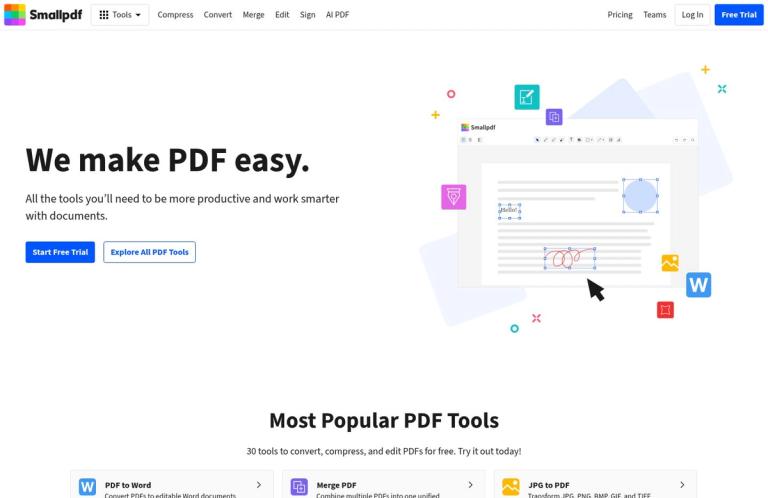
Smallpdf is an online service for working with PDFs and related document tasks. Its homepage advertises 30 tools to convert, compress, and edit PDFs for free, while its pricing page describes 30+ document-management tools on the Free plan. The catalogue goes well beyond those three headline jobs: it includes PDF-to-Word, PDF-to-Excel, and PDF-to-PowerPoint conversion; image-to-PDF; merging and splitting; page rotation and removal; editing and annotation; signatures; protection; and several AI-powered tools.
The central question for a prospective user is not simply whether Smallpdf is free. It has an ongoing Free plan, but that plan has boundaries: the pricing page says document downloads are limited and lists daily download limits for multiple tools. It does not give an exact number for those limits. Free access is therefore useful for trying the service or completing occasional work, but it should not be treated as unlimited capacity for a batch of documents or a deadline-sensitive task.
The official site’s main entry point is smallpdf.com. Its homepage links directly to popular tasks such as PDF to Word, Merge PDF, Edit PDF, and Compress PDF. These are useful starting points when you already know the job you need to do. Smallpdf also provides a broader tool list and a plan comparison, so you can check a less common task or review access terms before committing to a workflow.
Smallpdf is best suited to people who want several common document utilities in one browser-based service. It can be convenient to compress a file, combine pages, or convert a document without installing a dedicated desktop application. The service also has mobile-app access, and the pricing page distinguishes limited mobile access on Free from unlimited access on Pro. That difference matters if you expect to switch between a browser and the mobile app rather than use only the web tools.
Choosing a tool for the job
PDF conversion. Smallpdf lists conversion in both directions between PDF and Word, and also lists PDF conversion to and from Excel and PowerPoint. Its catalogue includes PDF-to-image tools and a range of image- and document-to-PDF options. This makes it a reasonable place to start when you need a particular format change. Choose the tool that matches your actual input and desired output: converting a Word document to PDF is a different task from converting a PDF into an editable Word document.
A format change does not, by itself, promise an exact replica of the original layout. As practical advice, inspect the converted file before you send it on or continue editing it. Pay particular attention to tables, columns, images, page breaks, headers, and footers. For a document that must be editable, check that the resulting text behaves as expected; for a document that must look a particular way, compare the pages with the original. This is a sensible check for any conversion workflow, not a claim that Smallpdf always changes formatting.
OCR and searchable content. Smallpdf lists PDF OCR and OCR-assisted conversion to Word, Excel, and PowerPoint. OCR is relevant when a PDF contains scanned pages or text that is not selectable, but it is distinct from ordinary format conversion. If the input is a scan, choose an OCR-related tool where appropriate rather than assuming a standard converter will recognize text. As advice, review recognized names, figures, and other important details against the page image, especially before using the output for records or calculations.
Compression. The Compress PDF page is intended for reducing a PDF’s size. This is useful when a file needs to fit an upload limit, be easier to share, or take up less storage. The pricing comparison distinguishes Basic Compression from Strong Compression, with Strong Compression listed as a Pro feature. Free users should not assume that every compression setting is included. Check the available option on the tool page, then inspect the result and confirm its final file size against the limit that matters to you. For documents with small print or detailed images, check readability as well as size.
Merging and page organization. Smallpdf lists Merge, Split, Rotate Pages, Delete Pages, and Extract Pages. These tools address different kinds of page-level work: combining documents, separating a file, changing page orientation, removing pages, or saving selected pages. The pricing comparison lists daily download limits for several of these tasks on Free. A practical approach is to arrange and check the intended page order before relying on the combined file. For a long document, verify that the first and last pages are present and that the sections appear in the intended sequence.
Editing and annotation. The homepage says users can add text, shapes, images, and freehand annotations to a PDF, and the catalogue also lists a PDF Annotator, PDF Form Filler, and other editing tools. The plan comparison lists Edit Text and several other editing or page tools separately, with daily download limits shown for multiple Free-plan tasks. If your goal is to change existing text, add a note, fill a form, or mark up a page, confirm that the selected tool supports that specific action. A general description such as “edit PDF” does not mean every editing operation has the same controls or plan access.
Signatures and document sharing. Smallpdf lists Fill & Sign and Sign PDF, as well as signature-request features associated with Sign.com. The pricing page has a separate Sign.com section with Free and Premium options, including limits on free signing. These are related services, but their access terms should not be confused with the main Smallpdf Free plan’s document-tool limits. If you need to request signatures or manage a signing process, check the relevant Sign.com terms and the current feature page rather than assuming that a Smallpdf PDF download allowance defines signing access.
AI PDF tools. The service lists Chat with PDF, AI PDF Summarizer, Translate PDF, and AI Question Generator. The pricing page marks these AI tools as limited on Free and lists a 50 MB AI-tool file-size limit. Pro includes unlimited access to AI-powered tools. Treat the free AI access as limited rather than unlimited, and check the relevant tool page for its current terms before preparing a large or time-sensitive task. The listed AI file-size limit is specific to AI tools; it should not be applied as a universal file-size limit for every converter, editor, or other PDF utility.
A practical workflow
A useful way to approach Smallpdf is to decide what the output must do before opening a tool. If the objective is a smaller attachment, start with compression. If you need to change formats, select the specific input-to-output converter. If the job is to combine or reorganize pages, use the relevant merge or page tool. This simple choice narrows the options and makes it easier to check whether the result meets the requirement.
Before uploading, check the selected tool’s page and the current plan comparison. This is especially useful if you need a feature that may be restricted on Free, such as Strong Compression, or if the task involves a daily download limit. Smallpdf’s general claim that it offers free PDF tools does not mean every feature has unlimited free access. If you know you will need to download the result, consider that boundary before starting a set of jobs.
For a conversion, keep the original and review the output. Check that the content is present and legible, and inspect any layout details that are important to the next step. For OCR, compare recognized text in critical fields with the scan. For compression, confirm the final size and look over text and images. For merging or splitting, verify the page selection and order. These checks are practical recommendations for document work; they are not claims based on a hands-on test of Smallpdf.
If you are using the Free plan, a low-risk way to evaluate fit is to begin with one non-urgent document and see whether the chosen tool and download access suit your needs. Do not plan a large batch on the assumption that a particular number of daily downloads will be available: the pricing page does not state the exact number. If the service indicates that a limit has been reached, consult the current plan page for the applicable option rather than relying on an assumed reset time or quota.
For a recurring workflow, identify the exact tools you use and compare their Free and Pro access. The pricing page describes Pro as adding unlimited access to all 30+ tools, unlimited document downloads, Strong Compression, unlimited access to AI-powered tools, and unlimited mobile-app access. Team adds business-oriented features such as centralized billing and member access management. Business is described as a custom offer. These distinctions are more useful for planning than treating Smallpdf as one undifferentiated “free PDF editor.”
Free plan, paid plans, and trial
Smallpdf has an ongoing Free plan. It includes 30+ document-management tools, but the pricing page also says Free has limited document downloads and limited mobile-app access. Its feature comparison lists daily download limits beside multiple individual tools, including PDF-to-Word, PDF-to-Excel, PDF-to-PowerPoint, PDF-to-image, PDF OCR, Merge, Split, and several editing and security tasks. The exact number of downloads is not stated, so a precise daily allowance cannot be quoted.
Some individual features have clearer plan distinctions. The comparison lists Basic Compression, while Strong Compression is included with Pro. It lists AI tools as limited on Free, while Pro has unlimited access to AI-powered tools. Pro also includes unlimited document downloads and unlimited access to all 30+ tools. These details establish that Free is a genuine entry-level option, not an unlimited version of the paid service.
The pricing page presents Pro, Team, and Business. It describes Team as including everything in Pro plus features such as discounted pricing, priority customer support, centralized billing, and member access management. Business is for 20 or more users and is offered with custom pricing. The page’s displayed prices are not readable as amounts here, so check the official pricing page for current costs and billing terms rather than relying on an estimate.
Smallpdf also advertises a seven-day free trial of paid access. Its pricing FAQ says that cancelling the trial prevents a charge and that the account returns to the Free plan when the seven-day period expires. A trial is temporary access; it is not the same as the ongoing Free plan. If you start one, check the current cancellation terms and date so you know when the trial ends.
Limitations and fit
The main planning limitation is the Free plan’s restricted downloads. Smallpdf confirms that document downloads are limited and shows daily limits for several tools, but does not publish a specific number in the pricing text. That makes Free harder to plan around for repeated work than a plan with a clearly stated allowance. It may still suit occasional tasks, provided you check access for the tool you want and can download the result when needed.
Another consideration is that tool access is not uniform. The pricing page distinguishes free and paid features, including Basic versus Strong Compression and limited versus unlimited AI access. Check the task-specific feature and the current comparison rather than assuming a homepage description applies equally to every plan. The listed 50 MB limit applies to AI tools, not all PDF operations.
Smallpdf’s broad catalogue is useful when you need several kinds of document work, but a collection of tools does not guarantee that every task is covered in the exact way you need. Confirm the relevant input, output, and controls on the individual page. For conversion, plan to check formatting; for OCR, review recognized text; for compression, verify size and readability; and for editing, make sure the chosen tool supports the intended change.
The homepage and pricing page describe security credentials and encryption, including ISO/IEC 27001 certification, compliance claims, and TLS encryption. These are statements by Smallpdf about its service, not an independent guarantee about how a particular document should be handled. If you are processing sensitive files, read the vendor’s privacy information and your organization’s requirements before uploading them.
Alternatives
If you are comparing services, focus on the particular task and the current access terms rather than assuming one PDF suite is best for everyone. iLovePDF and PDF24 Tools are relevant comparisons for collections of PDF utilities. LightPDF offers another PDF-focused option to assess. For an editing-centered comparison, consider PDFescape; for a conversion-focused one, compare Online-Convert. Check each service’s current tools and plan terms for the job you have in mind.
Verdict
Smallpdf is a versatile starting point for common PDF tasks, including conversion, compression, merging, editing, OCR, and signatures. Its Free plan includes 30+ document-management tools, and the official catalogue makes it straightforward to navigate to popular jobs such as PDF-to-Word, Merge PDF, and Compress PDF. Its clearest drawback for free users is limited downloading: the exact daily allowance is not stated, and access to some features differs by plan.
For occasional work, try the specific tool you need and check that you can download and use the result. For frequent tasks, compare the current Pro or team terms against your actual workload, paying attention to download access and the features you need. Smallpdf is a useful general-purpose PDF service, but Free should not be mistaken for unlimited use, and converted or edited files should be checked before they become the final copy.


