

What Convertio does
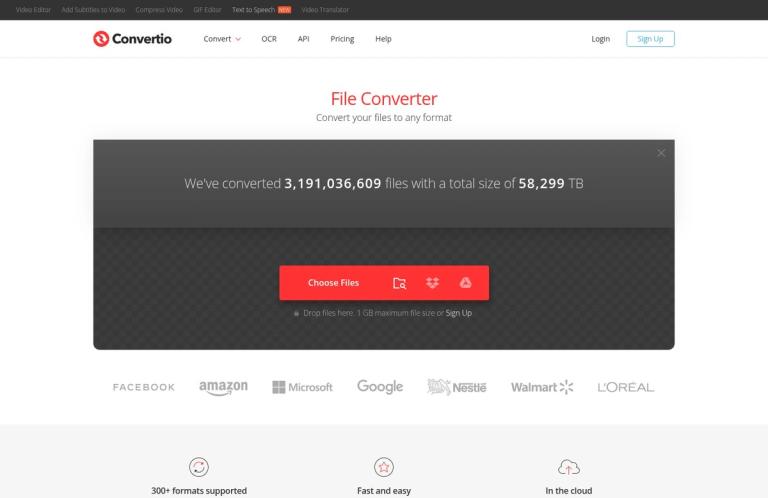
Convertio is a browser-based file converter at convertio.co. Its main job is to take a file in one supported format and produce a version in another. The usual process is to choose or drop in a file, select an output format and click Convert. Convertio says it supports more than 300 file formats and more than 25,600 conversions between formats. Those figures describe the breadth of its catalogue; they do not mean that every possible input and output pairing is available.
The service covers several broad categories, including image, audio, video, document, archive, presentation, font, ebook and vector conversion. The homepage also lists OCR as a separate option. That distinction matters: a general file conversion changes a file’s format, while OCR is a separate kind of task involving recognition of text in images or scanned documents. Do not assume that an ordinary document conversion will extract text from a scan, or that converting a file will edit its contents.
Convertio’s appeal is convenience. It works in a browser, supports multiple platforms, and does not require installing desktop software. The company says conversions take place in the cloud, rather than using your computer’s capacity for the conversion. That can be useful when you need to prepare a file on a device where you cannot install a program, or when the relevant conversion is available more readily online than in the software you already use.
The homepage gives familiar examples of format pairs, including WEBP to PNG, HEIC to JPG, WAV to MP3, MP4 to GIF and EPUB to PDF. These examples illustrate the range of the service, but you should still check that Convertio offers the exact input and output you need. A file extension alone does not tell you whether the resulting file will preserve the characteristics important to your task.
Formats, options and fit
A general-purpose converter
Convertio is suited to changing a file’s format for compatibility or a particular workflow. For example, you might need an image in a format accepted by an application, an audio file in a format supported by a playback device, or a document saved in a different file type for someone else to open. These are practical examples of why someone might use a converter, not claims that every such conversion is available or that the output will meet every application’s requirements. Check the site’s format choices for the precise pair before starting.
The number of formats is useful when your needs vary. Instead of finding a different conversion utility for each category, you can check whether one service covers the job at hand. That convenience does not make Convertio a universal editor. If you need to rewrite a document, revise a PDF, retouch an image or make detailed changes to media, those are editing tasks. A conversion may change the file type, but it should not be treated as a substitute for editing the underlying content.
Different formats also retain different kinds of information. When converting a document, you may care about editable text, page layout, tables or fonts. For audio or video, you may care about playback compatibility or quality. For images, the relevant concerns could include appearance or how the file is used in another application. Choose an output based on the purpose of the file, then inspect the result for the details that matter. Convertio’s broad format count is not a promise that every feature will be preserved in every conversion.
Settings for some conversions
Convertio says most conversion types support advanced options. Its example is the video converter, where users can choose settings such as quality, aspect ratio and codec, as well as rotate or flip the video. This gives users some control beyond selecting an output extension, where those options are offered. The site does not say that every conversion type has the same settings, so check the relevant interface rather than expecting video controls for documents or images.
These choices can help when a destination has specific playback or display requirements. As practical advice, identify those requirements before converting: for example, establish whether a video must fit a particular aspect ratio or whether a receiving application calls for a particular format. Make a small test conversion first when the output settings are unfamiliar and the final result matters. This is a suggested workflow, not a claim that Convertio provides a separate test mode or guarantees a particular result.
A setting can affect more than the extension shown in a filename. If you adjust quality, aspect ratio or codec, check the converted file in the application or device where it will be used. Keep the original until you are satisfied with the result. For a straightforward, low-stakes format change, a quick open-and-check may be enough; for a file used in a presentation, delivery or formal submission, check the parts that would be costly to get wrong.
Conversion is not OCR or layout repair
The homepage lists OCR separately from the converter categories. If your goal is to recognize text in a scan or image, look for the OCR option and confirm that it suits your source file. Do not assume that simply converting a scanned PDF to another document format will make its text editable. OCR and file-format conversion answer different needs, even when they appear in the same service.
Similarly, converting a document does not mean that its layout will be reconstructed exactly. Complex page designs, tables, unusual fonts or other formatting may need inspection after conversion. If the task is to preserve a document’s appearance precisely, or to revise the actual content, use a workflow designed for that requirement and compare the output with the original. These are general file-handling recommendations, not claims that a particular Convertio conversion will fail.
A practical workflow
The homepage describes the basic sequence: drop files on the page, choose an output format, click Convert and wait for the process to complete. A careful workflow can add a few checks without making a simple conversion complicated:
- Identify the actual job. Decide whether you need a format change, text recognition, editing or another task. If the goal is OCR or content editing, do not assume a general conversion is enough.
- Check the format pair. Find the relevant category and confirm that the site accepts your source and offers the intended output. Convertio’s catalogue is broad, but the exact pair matters more than the headline format count.
- Consider the file before uploading. Convertio says conversions take place in the cloud. If the file is sensitive, consider whether uploading it to an online service meets your own privacy, workplace and regulatory requirements.
- Choose the output and any relevant settings. Select a format that fits the receiving application or intended use. For video conversions, the homepage says options can include quality, aspect ratio, codec, rotation and flipping. Check what is available for your specific conversion.
- Convert and download the result. The homepage says the service aims to complete conversions in under one to two minutes. This is an aim, not a guaranteed completion time; file characteristics and service conditions can affect how long a job takes.
- Open and inspect the output. Check that the file opens and that the features important to you are present. For media, review the playback or appearance characteristics you care about; for documents, inspect the content and layout.
- Keep the original until you are satisfied. If the output is unsuitable, reconsider the format or settings, or choose a specialist tool for editing, OCR or reconstruction rather than repeatedly converting without checking.
This sequence is useful for both occasional and recurring tasks. For a one-off image change, confirming the output opens in the intended application may be enough. For a document with tables, a video with a required display shape, or a file that will be shared with others, a more deliberate check is sensible. Those examples are advice about managing conversion work, not reports of tests performed on Convertio.
Free use and paid plans
Convertio says it offers a free tier to all users. However, its pricing page does not state the free tier’s credit allowance, file-size cap or other exact usage limits. The homepage displays a maximum file size of 1 GB, but does not identify that figure as a free-tier allowance. Treat the free option as a way to try a suitable conversion, not as a promise of unlimited use or a confirmed capacity for regular work. Check the current interface and terms before relying on a particular free allowance.
The official pricing page lists four paid plans. Prices below are monthly amounts: the first price is for monthly billing and the second is the monthly equivalent when billed yearly. Convertio advertises annual savings of up to 40%.
| Plan | Monthly billing | Monthly equivalent billed yearly | Maximum file size | Credits per month | Concurrent conversions |
|---|---|---|---|---|---|
| Lite | $11.99 | $6.99 | 1 GB | 1,000 | 50 |
| Basic | $22.99 | $13.99 | 3 GB | 3,000 | 100 |
| Pro | $44.99 | $25.99 | 10 GB | 10,000 | Unlimited |
| Custom | From $54 | From $32.42 | 20 GB | Up to 1 million | Unlimited |
The pricing page also lists priority levels: High for Lite, Higher for Basic, and Highest for Pro and Custom. All plans include unlimited conversion minutes per day, unlimited maximum conversion time per file and ad-free pages. Those unlimited time descriptions are not the same as unlimited monthly credits: each plan has a stated monthly credit allowance, except Custom, which offers up to 1 million credits per month.
Convertio explains that a conversion credit measures the server time needed to process a file. It says most photo and document conversions use one credit, while larger files or more complex codecs require additional credits. Users can track usage in their account dashboard, and the company says it charges credits only for conversions that complete successfully. That explanation is more useful than treating one credit as one job: the number of credits consumed can vary with the file and conversion.
The pricing page says subscriptions can be cancelled through the account page. Cancellation stops the next billing cycle, while access continues until the end of the period already paid for. It also says Convertio does not issue refunds for subscriptions once a user has decided to upgrade, and directs customers to review its refund policy and test the service before purchasing. Read the current plan and refund terms before paying, especially if you are unsure how your likely files will use credits.
File handling and privacy
Convertio’s homepage says uploaded files are deleted instantly and converted files after 24 hours. It also describes its service as cloud-based and makes privacy and security assurances. These are the provider’s statements; they are not an independent assessment of the service. If you handle confidential or regulated files, decide whether uploading them is acceptable under your own requirements rather than relying on a general policy statement alone.
The browser-based design means you do not need to install conversion software, but it does not mean the conversion happens only on your own device. Convertio says conversions take place in the cloud. That is convenient when you want to use the service across supported platforms, but it is a relevant distinction for sensitive files or organizations that restrict online processing. For those cases, check the organization’s approved tools and the provider’s current privacy information before uploading.
Alternatives
Choose an alternative according to the task, rather than assuming all file tools do the same thing. Online-Convert is a relevant comparison for another online format-conversion service. PDF24 Tools and iLovePDF are options to consider for PDF-focused work. PDFescape is more relevant when you need to work with PDF content rather than only convert a file. Photopea is a category fit for image editing, where changing the image’s format is not the whole job.
These are category-based alternatives, not claims that another service supports every Convertio format or has the same pricing, limits or privacy terms. Confirm the specific task and current terms with each provider. If you need OCR, editing or a particular media feature, verify that the alternative offers that function rather than choosing by name or by a broad description of file support.
Verdict
Convertio is a practical browser-based option for changing files between supported formats. Its stated catalogue spans more than 300 formats, and the homepage provides examples across images, audio, video and documents. The service also offers advanced settings for many conversion types, with video options such as quality, aspect ratio, codec, rotation and flipping. Cloud processing and the lack of a software installation requirement suit users who want a web workflow.
The main limitation for someone deciding whether to use it free is straightforward: Convertio confirms a free tier but does not publish its exact usage caps on the pricing page. The homepage’s 1 GB figure is not labeled as the free limit. Paid plans are more specific about file sizes, monthly credits and concurrent conversions, and the pricing page explains that credit use depends on server time, file size and conversion complexity. Check the current free allowance before planning repeated work, and compare paid terms with your expected usage before subscribing.
Convertio is best viewed as a converter, not a promise of perfect layout preservation, OCR or comprehensive editing. Confirm the exact format pair, choose relevant options, and inspect the downloaded file. For simple compatibility changes, that may be all you need; for editing, OCR, strict layout requirements or sensitive material, consider whether a specialist or approved alternative is a better fit.


