

What CloudConvert does
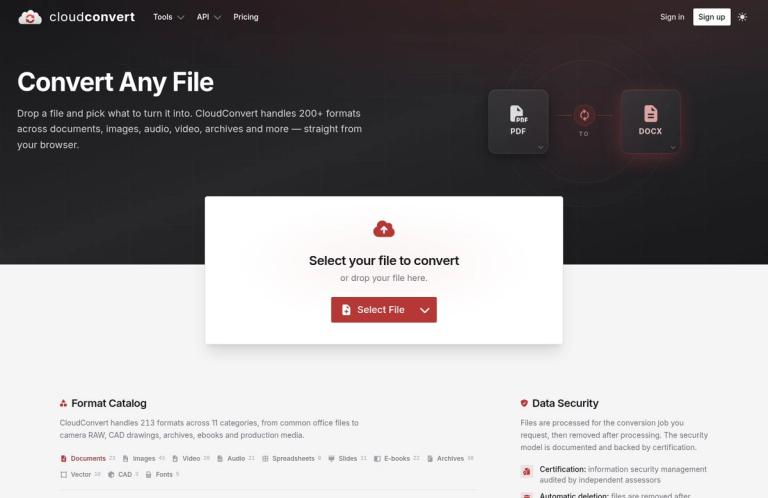
CloudConvert is an online service for converting files from one supported format to another. Its homepage says it handles more than 200 formats across documents, images, video, audio, spreadsheets, slides, e-books, archives, vector files, CAD drawings, and fonts. You can select a file or drop it into the browser interface, choose a destination format, and start a conversion. The appeal is practical: when an application or recipient needs a different file format, CloudConvert may provide a direct way to create one without installing a desktop converter.
A broad catalog does not mean every possible source-and-destination pairing is available. The format count describes the service’s overall coverage, not a guarantee for a particular file. Before planning around a conversion, check that CloudConvert offers the exact destination for your source. The homepage’s catalog lists formats and common conversion types; the available options depend on the selected operation. For an important file, try a representative, non-sensitive sample first, then inspect the result in the application where you intend to use it.
CloudConvert is a converter, not automatically an editor, repair tool, or text-recognition service. Changing a file’s format does not by itself correct its content, extract text from a scan, or guarantee that every detail will look or behave as it did in the original. If you need OCR, document editing, or specialized media work, look for an option that explicitly performs that task. A PDF-to-Word conversion, for example, is a format conversion; do not assume it will recognize text in every scanned page or reproduce complex layouts perfectly.
Formats, controls, and jobs
The homepage gives useful clues about the range of the catalog: it lists 23 document formats, 43 image formats, 28 video formats, 21 audio formats, 8 spreadsheet formats, 11 slide formats, 22 e-book formats, 39 archive formats, 10 vector formats, 3 CAD formats, and 5 font formats. These category counts add up to 213 formats. They help explain why the service may be useful for less common files as well as everyday office documents, but they do not tell you whether a particular conversion will meet your quality requirements.
CloudConvert presents document examples such as PDF to DOCX for an editable Word document and DOCX to PDF for a print-ready PDF. The destination may suit a different next step: editing, exchanging a file, or preparing something for printing. Treat those labels as descriptions of intended use, not promises about the result of every file. After converting a document, check page breaks, tables, fonts, images, and other elements that matter for your purpose. For a document that must be submitted or printed, open the result and review it before sending it on.
For images, the homepage includes common formats and specialist categories such as camera RAW. For audio and video, it lists dedicated format coverage and says the options available change with the selected operation. The homepage also advertises per-conversion controls for codec, bitrate, resolution, and quality. Those controls can be relevant when preparing media for a particular destination, but their availability depends on the operation; the site does not imply that every control appears for every conversion. Check the settings shown for your chosen job, then play or view the result in its intended context.
The distinction between converting and editing is particularly useful for media. A converter can help produce a supported file format, but the format alone does not establish that the output has the right picture dimensions, sound characteristics, timing, or quality for your use. If those details matter, check the offered settings and inspect the converted file before replacing an original. The same cautious approach applies to archives: the homepage lists archive formats, but a changed archive format is not a guarantee that every contained file will suit a separate application or workflow.
The browser interface is aimed at a direct file-conversion task. CloudConvert also describes an API for building jobs from import, convert, and export tasks, connecting them with storage and application logic. That is a different way to use the service from selecting a file on the website: an API job can be arranged as a workflow for an application or production process. The homepage gives an example that imports a file from a URL, converts it to DOCX, and exports a URL. Do not assume that a web-interface allowance and an API integration have identical setup or usage terms; check the relevant current plan and API information for the workflow you intend to build.
A sensible browser workflow
For a one-off conversion, start at the official CloudConvert website. Select your file or use the drop area, choose a destination that is offered for that source, and review any settings shown for the operation. Before starting, consider the free plan’s size, processing-time, and concurrent-task limits, as well as the credits required. Once the conversion finishes, open or play the result in the application you plan to use. Keep the original until you have confirmed that the converted file works for its intended purpose.
That sequence is advice for evaluating a conversion, not a report of a hands-on test. It is useful to check the file before uploading, especially if the task has a deadline or the source is difficult to recreate. If you are converting a document for someone else, review its appearance and content. If it is media, check the parts of playback that matter to you. If the result is intended for a specialist application, confirm that application accepts it. A completed job means that the conversion ran successfully; it does not independently certify that the output meets every requirement you have.
CloudConvert’s pricing page lists five concurrent tasks on the free plan. That is a limit on tasks running at the same time, not a stated completion-time estimate. The same plan lists a maximum processing time of five minutes per job. If your work involves a batch, separate the tasks you can run from the credits you have available: concurrency and credit allowance describe different constraints. For a time-sensitive job, avoid relying on a last-minute conversion and leave time to check the resulting file.
Free allowance and credits
CloudConvert lists its free plan at €0 for personal use, testing, and hobby projects. The official pricing page lists 10 conversion credits per day, with a daily reset, and says no credit card is required to start free. It also lists a maximum file size of 1 GB, a five-minute maximum processing time, and five concurrent tasks. These are defined limits, not an unlimited free tier. They can help you judge whether an occasional conversion is likely to fit, but they do not promise that any file below the size limit will finish within the processing-time limit.
Credits are not a simple one-credit-per-file counter. CloudConvert says that a conversion uses at least one credit, with further credits charged for additional minutes when a job takes longer than one minute. Its pricing page gives a general base cost of one credit, two credits for Office to PDF, two for iWork to PDF, and four for PDF to Office. It also describes some premium conversion types as having a minimum base cost of two credits. Only successful conversions are charged, according to the pricing page. The cost of a job therefore depends on its conversion type and processing time; the daily credit allowance does not guarantee ten completed jobs.
The pricing page also says that the “longer a conversion takes,” the more resources it consumes, and that packages and subscriptions typically consume one credit per minute of conversion time. Its more detailed explanation says a job uses its base amount and incurs additional credit charges for extra processing time beyond a minute. For planning, use the credit information shown for the conversion and the current pricing terms rather than treating the headline “10 conversions per day” as a guaranteed number of files. The homepage and pricing page use slightly different wording—one promotes 10 conversions per day, while the plan table specifies 10 credits per day—so the credit rules are the more useful guide to actual capacity.
Paid options include one-time credit packages, monthly subscriptions, and custom enterprise plans. The pricing page says package credits do not expire, while subscription credits reset monthly and unused credits do not roll over. It also says subscriptions can be up to 50% cheaper than packages and can be cancelled at any time without a minimum term. Prices vary with the selected volume, so check the live pricing page for a current quote rather than relying on a fixed price. The page says subscription credits are consumed first when an account has both subscription and package credits. These paid options are separate from the free plan and should not be mistaken for additional free credits.
Limits and choosing the right tool
The free plan’s constraints cover several different parts of a job: daily credits, maximum file size, maximum processing time, and the number of simultaneous tasks. A small file may still need more time or credits than expected, depending on the operation. A conversion that fits within the size limit may not fit within the time limit. If you have repeated work, make a small trial run and check the actual credit use before deciding whether the free allowance is enough for a larger batch.
Format support is also not a substitute for checking the output. CloudConvert says the controls available vary by selected operation, and its homepage describes vendor and open-source conversion engines selected per file type. The site advertises high-quality conversions and, for documents and images, color-accurate and font-faithful output. Those are vendor descriptions of the service, not a guarantee that each source file will convert without changes. Inspect anything where layout, appearance, playback, or downstream compatibility matters.
Choose CloudConvert when the main task is changing a file into a supported format and the available conversion options fit your needs. If the task is text recognition from an image or scan, compare i2OCR, which is focused on OCR. For math-heavy documents, Mathpix is a more relevant specialist comparison. If you need to edit PDF content rather than convert a file, consider PDFescape or iLovePDF. PDF24 Tools and Online-Convert are other services to compare for file-conversion needs. Check each service’s current formats and free limits before choosing.
A useful way to decide is to describe the outcome you actually need. If another application requires a different file type, check for that exact conversion. If you need to change the contents of a PDF, look for an editor. If you need text extracted from a scan, look for OCR. If a file will be used in a production workflow, verify that the destination and relevant settings are supported. This makes the choice depend on the task, rather than assuming that a large format catalog includes every editing or recognition feature.
Privacy and security statements
CloudConvert says files are processed for the requested conversion and removed afterwards. Its security page says files are kept only for processing and deleted immediately afterwards, and that it does not provide permanent storage. The company also describes isolated containers for conversions, encrypted transfers, and the use of cloud providers and data centers that it says are ISO 27001 certified. These are CloudConvert’s statements about its own service and security measures; they are not an independent guarantee that every upload is risk-free.
The security page says Lunaweb GmbH, the company behind CloudConvert, has an ISO 27001-certified information security management system, with certification from TÜV Süd. It also says the company is committed to GDPR compliance and offers a data processing agreement on request. These statements may be relevant to an organization assessing a service, but they do not replace that organization’s own review of the current security information, privacy policy, and applicable rules. Consider whether an online service is appropriate for the file before uploading confidential or regulated material.
Verdict
CloudConvert is a flexible browser-based option for converting supported file types across documents, images, audio, video, archives, and specialist categories. Its catalog covers more than 200 formats, and the homepage also describes operation-specific controls for media and other conversion jobs. The free plan gives occasional users a clear starting point: 10 credits per day, a 1 GB file-size maximum, a five-minute processing-time maximum, and five concurrent tasks. The main budgeting detail is that credits are not the same as a guaranteed number of completed files; the base cost varies by conversion type, and longer jobs can use additional credits.
It is a good fit to consider for compatibility tasks when the exact conversion is offered and the free limits suit the job. It is less suitable to treat as an unlimited free service or as a promise of perfect output fidelity. Check the operation’s available settings and credit cost, then inspect the result before relying on it. For OCR, editing, or a more specialized outcome, choose a tool that explicitly offers that function.


