

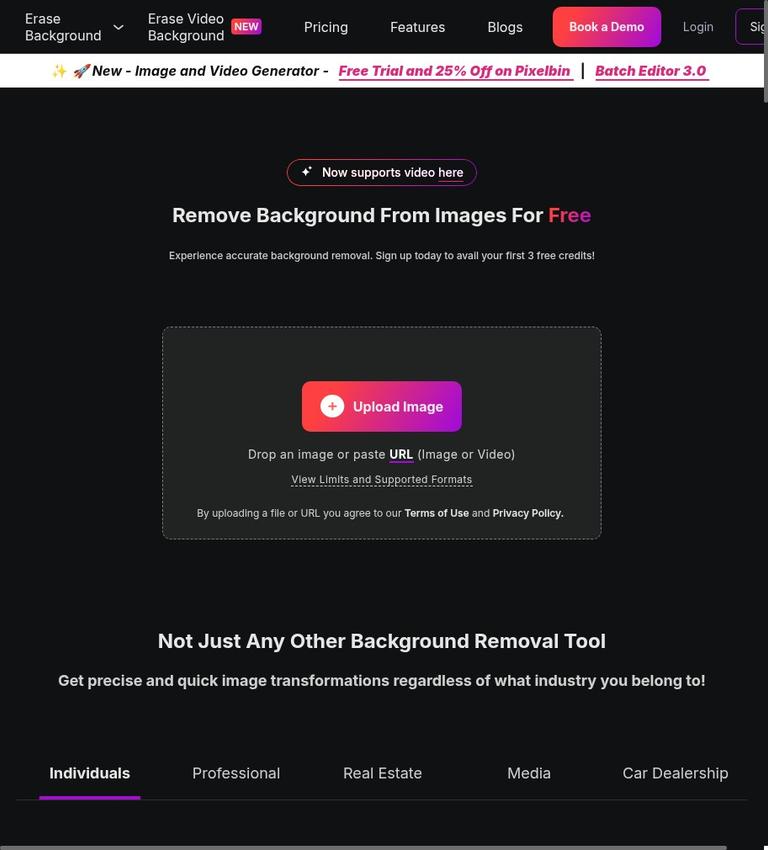
What Erase.bg does
Erase.bg is an online background-removal tool from the Pixelbin ecosystem. You upload an image, the service automatically separates the subject from its background, and you can download the result as a PNG. The main appeal is a direct workflow for creating transparent-background images without manually tracing every edge. It is useful for product photos, profile images, graphics, and other pictures where the subject should remain while the setting disappears.
The service is not entirely free: a new user gets three free credits, and each removal costs one credit. Those three credits allow three HD image downloads; they are not a monthly allowance that renews. You need to sign up to use the tool. If you expect to remove backgrounds regularly, check the one-time credit packs and their expiration rules before purchasing.
Erase.bg is a focused editor rather than a general image-editing suite. Its automatic cutout handles the initial separation, and you can inspect the result, make optional background or color edits, and download a transparent PNG. The automatic result still deserves a close look, especially around hair, translucent objects, and fine details. A clean cutout depends on the input image and how clearly the subject stands apart from its background.
Key features and supported images
The core feature is automatic background removal. Upload a supported picture and Erase.bg creates a cutout, so you do not need to draw a selection around the subject by hand. This can save time on straightforward images, such as a person photographed against a simple wall or an item on a contrasting surface. Complicated edges and busy backgrounds call for more careful inspection before you use the result.
The tool accepts PNG, JPG, JPEG, WebP, and HEIC files. The maximum input size is 10,000 by 10,000 pixels and 25 MB. The pixel limit describes the maximum width and height; it is not a 25-megapixel limit. If an image is rejected, check both its file type and its file size, as well as its dimensions.
After the cutout, you can inspect the subject and optionally edit the background or color. The background-removal workflow is useful when you want transparency, while background editing can suit an image intended for a particular design or layout. A PNG download preserves transparency when the background has been removed. If you choose a replacement background, check the downloaded image to make sure it matches the format you need.
A practical distinction is that the free allowance is small and specific: three credits correspond to three HD image downloads. Bulk processing and API use are separate professional workflows in the Pixelbin ecosystem. They should not be assumed to be included in the three free credits or in an individual background-removal session. Anyone planning a large batch should compare the relevant professional offering with the one-time credit packs.
How to remove a background
-
Prepare the image. Choose a PNG, JPG, JPEG, WebP, or HEIC file no larger than 25 MB and no wider or taller than 10,000 pixels. Use an image where the subject is visible and the edges are reasonably distinct. A clear source image gives you a better starting point for reviewing the cutout.
-
Open Erase.bg and sign up. An account is required. If you have not used the service before, keep in mind that the free offer is three credits total, not three credits each month. One removal uses one credit, so start with an image you are ready to process.
-
Upload the picture. Select the image from your device and let the automatic cutout run. The service processes the upload online rather than performing the removal entirely on your computer. Avoid uploading a photo if you do not have permission to use it or are not comfortable sending it to a cloud service.
-
Inspect the edges. Look closely at hair, fur, transparent or translucent items, narrow gaps, and areas where the subject meets a similar-colored background. Zoom in if the interface allows it. Check the whole outline rather than judging the result from a small preview: a missed edge can be noticeable once the image is placed on a different background.
-
Make optional edits. If the result needs a different presentation, use the available background or color editing options. Decide whether you need a transparent cutout or a replacement background before downloading. For transparency, keep the background removed and choose PNG as the output.
-
Download and check the file. Save the image, then open it in the destination app or viewer. Confirm that transparency appears as expected and that no unwanted background fragments remain. This last check matters if the image will be used on a colored page, in a presentation, or in a product listing.
Pricing and credit limits
Erase.bg uses a freemium model. Signing up provides three free credits, which cover three HD image downloads because each removal costs one credit. The three credits are a signup allowance, not a promised monthly refill. Treat them as a small allowance for trying the workflow or handling a few occasional images, not as an ongoing free plan for regular production.
The pricing selector lists three one-time credit purchases: 10 credits for $5.43, 100 credits for $10.86, and 1,000 credits for $45.25. These are credit-pack prices, not monthly subscription rates. At one credit per removal, the packs correspond to 10, 100, or 1,000 background removals, subject to the service's stated HD download and credit rules. The price can vary at checkout because of tax or checkout details, so check the amount shown before paying.
Purchased credits are valid for one year and are non-refundable. That makes the smallest pack the more cautious choice if you only have a handful of images to process. Larger packs cost more upfront and make sense only if the expected workload fits the quantity and one-year validity period. Do not buy a large pack solely because its headline price per credit looks lower; estimate how many images you will actually process before the credits expire.
The free credits and credit packs are for the individual removal workflow. Pixelbin bulk processing and API services are distinct professional workflows, rather than a way to assume that one free credit covers a large batch. If your work involves many images or automated processing, check the appropriate professional service and its own terms before building a workflow around it.
Real-world limits to consider
Erase.bg is most convenient when an image has one clear subject and you want a quick cutout. It is less dependable as a substitute for checking the image yourself. Hair, fine strands, transparent material, motion blur, and similar colors between the subject and background can make boundaries harder to separate. Inspect the output at the size and against the background where it will actually be used.
The input rules also set practical boundaries. A file over 25 MB, an unsupported format, or an image exceeding 10,000 pixels in either dimension will not meet the stated limits. If you can safely resize or convert an image, doing that before uploading may help it fit the requirements, but retain an original copy if image quality matters.
The credit system is another real limit. Three free credits are useful for a small trial, but they are quickly used if you have a collection of images. Purchased credits expire after one year and cannot be refunded. Plan a batch before buying, and do not confuse one-time credits with a recurring monthly allotment.
Finally, automatic removal is not the same as detailed manual retouching. When a cutout needs precise recovery of small gaps or delicate edges, you may prefer a manual editor or need to refine the result elsewhere. A download should be checked before publication, especially for commercial images where an edge defect can undermine an otherwise polished design.
Privacy and image handling
Erase.bg requires an image upload, so using it involves sending the picture to an online service rather than keeping the entire process on your device. That matters for portraits, customer images, unpublished product photos, and any picture containing personal or confidential information. Obtain permission where required and consider whether the image is appropriate to upload before starting.
For confidential portraits or unreleased client work, get approval for third-party processing before uploading. For sensitive work, a local editing option can reduce the need to send the image to a cloud service. Also consider the rights of the person who created the image and anyone pictured in it; removing a background does not change those rights.
Who Erase.bg suits
Erase.bg is a good fit for someone who needs a small number of quick cutouts and wants a simple upload, automatic removal, inspection, and PNG download process. It can also suit a user who is willing to spend credits on an automated first pass and review the edges before using the file. The three free credits let a new user try a few images, but they are not suitable for a continuing monthly workload.
It is a weaker fit if you need a fully local workflow, if you cannot upload the source images, or if your work depends on highly precise manual masking. It is also not the right assumption for unlimited free batch processing: the individual tool has a limited credit allowance, while bulk and API workflows are separate. Estimate your volume and check the one-year credit expiry before committing to a paid pack.
Alternatives to consider
Photopea is a browser-based image editor that can be used for manual masking and broader image adjustments. It can be a better choice when you want hands-on control over a difficult edge or need editing beyond removing a background. Manual work takes more effort than an automatic cutout, particularly across many pictures.
Canva is worth considering when the cutout is only one step in a larger design, such as a social graphic or presentation. remove.bg is another background-removal brand to compare if you want a dedicated alternative. Check each service's current limits and pricing directly; those details can change, and the options are not necessarily interchangeable for privacy, volume, or editing needs.
FAQ
Does Erase.bg have a free plan?
Signing up gives you three free credits for three HD image downloads. The credits do not renew monthly.
How many credits does one removal use?
One background removal uses one credit.
What do the credit packs cost?
The selector lists 10 credits for $5.43, 100 for $10.86, and 1,000 for $45.25 as one-time purchases. Checkout totals can vary with tax or checkout details.
How long do purchased credits last?
Purchased credits are valid for one year and are non-refundable.
Which image formats and sizes does Erase.bg accept?
It accepts PNG, JPG, JPEG, WebP, and HEIC files up to 25 MB and 10,000 by 10,000 pixels.
Does Erase.bg process images locally?
No. You upload images to the cloud service, so consider privacy and permission before sending sensitive photos.


