

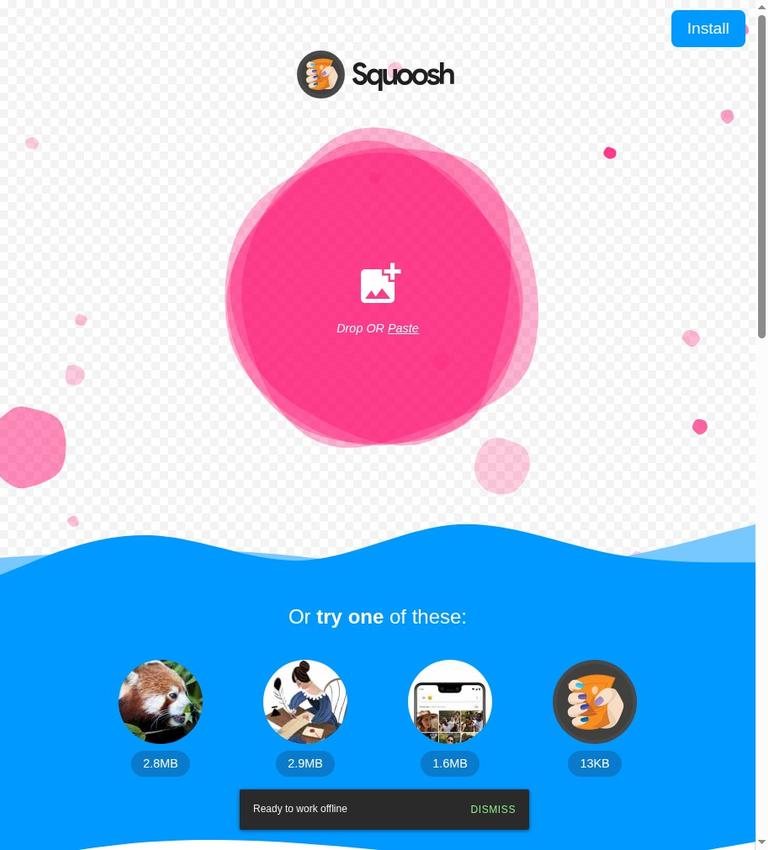
What Squoosh is
Squoosh is a free, open-source image compressor from GoogleChromeLabs. It runs in a web browser and lets you compare an original image with a compressed version before downloading the result. Its defining practical feature is local processing: images are processed on your device rather than sent to a server, according to the Squoosh homepage. That makes it useful when you want a quick visual check and prefer not to upload an image to an online conversion service.
The workflow is intentionally focused. Open one image, choose an output format and its available settings, inspect the comparison, and download the converted file. You can also resize an image or reduce its color palette. Squoosh is not a full photo editor, an asset library, or a batch-processing service. It is a hands-on utility for making and checking one compressed image at a time.
Compression changes a file to make it smaller, but the method matters. Lossy compression can discard image information to reduce size; lossless compression aims to retain the image data while encoding it more efficiently. Squoosh exposes format and quality controls, so the user makes the trade-off. It does not promise a fixed reduction or automatically choose a universally best quality setting. The right result depends on the image, its intended use, and how much visible change you will accept.
Key features and what they mean
Side-by-side visual comparison
The split comparison slider lets you examine the source and the compressed output in the same view. This is more useful than choosing a setting based only on a number: a file-size reduction is not a good outcome if it introduces visible artifacts in a logo, text, a face, or a detailed photograph. Move the divider around important areas and zoom in when fine detail matters. A small preview at normal size can conceal problems that become obvious in a larger display or crop.
Output format and quality controls
Squoosh offers JPEG, PNG, WebP, and AVIF as output choices. The available codec choices can depend on the build and browser, so do not assume every format or control will appear in every setup. The selected output format affects both compatibility and image characteristics. JPEG is not a suitable choice when you need transparency. For a transparent image, use a format such as PNG, WebP, or AVIF, and inspect the downloaded result to make sure the background behaves as intended.
Quality controls let you adjust the encoding rather than accept one preset for every picture. Lower settings can reduce file size but may make damage more noticeable; stronger settings can preserve more visual detail while producing a larger file. The slider is a decision aid, not a guarantee of a particular file size or quality. Compare the output itself, and check the actual downloaded file before replacing an original or publishing the image.
Resize and palette reduction
The optional resize control changes image dimensions. Resizing can be more effective than compression alone when an image is much larger than the display area where it will appear. Choose dimensions based on the intended use, and retain a copy of the original in case you later need a larger version. Palette reduction is another available option; it reduces the number of colors used. That can suit some graphics, but may visibly affect gradients, photographs, or other images with subtle color transitions. Compare carefully rather than applying it by default.
Local, open-source operation
The homepage says images are processed locally and never leave the device. That is a meaningful distinction from workflows that upload an image for server-side conversion. Squoosh is also open source under the Apache 2.0 license, and its source repository is available on GitHub. Local processing does not remove the need to handle files carefully on your own device, but it means the core image-conversion workflow is not based on sending the image to a Squoosh server.
How to use Squoosh step by step
- Open Squoosh in a supported browser and drag an image into the page or use the open-image control. The workflow handles one image at a time, so prepare a single source file for each conversion.
- Look at the original image before changing settings. Note details that must remain intact, such as transparent areas, small text, fine edges, or subtle color. If color appearance or metadata matters to your use, plan to inspect the output rather than assume every detail will be preserved.
- Select an output format. Choose JPEG only when transparency is not required. For transparency, consider PNG, WebP, or AVIF, then check the result. If the file must work in a particular app or publishing system, confirm that destination accepts the selected format before converting a whole set of assets.
- Adjust the output quality or other codec options that are available. Make one change at a time so you can see what it does. There is no universal quality number that fits every image, and Squoosh does not guarantee a particular compression percentage.
- Use the comparison slider to examine the original against the encoded result. Check the parts most likely to reveal damage: fine lines, text, edges, gradients, and textured areas. Zoom in if needed, then return to the normal viewing scale to judge whether the image still works in its intended context.
- If the image is larger than needed, try resizing it. If you are converting a graphic that can tolerate fewer colors, consider palette reduction. Treat both as optional adjustments, and inspect the result after each change.
- Download the output and check the actual file. Confirm its dimensions, appearance, format, transparency, and file size. Keep the original separately until you are satisfied, especially when the source is difficult to recreate.
This approach works well for a single image, a one-off web asset, or a careful comparison between formats. It becomes slower when you have a large catalog, because each image requires an individual visual workflow. Squoosh’s one-image-at-a-time design is an important practical limitation, not a hidden monthly allowance.
Pricing: free, with no paid tier
Squoosh is free to use. There is no subscription, account requirement, credit balance, or monthly quota. There is no paid plan to unlock a higher usage allowance, and no billing period or per-image fee applies. Its open-source repository is licensed under Apache 2.0.
The lack of a service quota does not mean every image will process instantly. Encoding uses your device’s resources, so available memory and processing time are practical constraints. A large or demanding image can take longer or strain a device with limited memory. These are local hardware limits rather than a stated server-side plan cap. If a conversion is slow, try a smaller source or different settings, while preserving the original.
There is no reason to upgrade to a paid Squoosh plan: the product is free. If your work needs bulk conversion, automated processing, or a production pipeline, look for a tool designed for those tasks rather than expecting a paid Squoosh tier to add them.
Real limitations to consider
Squoosh is a visual, single-file utility, not a batch service. You open one image, configure it, compare, and download. Repeating that process across many files takes time. The tool also does not make the decision for you: it provides controls and a comparison, but you must decide whether a smaller file still looks acceptable.
Codec availability can vary with the build or browser. If a format or setting you expect is missing, the interface may not expose it in that environment. Practical performance also depends on the device’s memory and encoding speed. These constraints are different from a fixed upload cap or monthly quota, which the product information does not list.
Compression and resizing can affect more than the visible file size. Metadata and color can matter in professional or archival work, so inspect output when those properties are important. Do not discard the source merely because the preview looks good. Keep the original until you have checked the downloaded file in its real destination.
Privacy and data handling
Squoosh processes images on your device, not on a remote image-processing server. Opening a personal photo in its compressor does not upload that photo. Your downloaded result is a local file that you can store wherever your project requires.
The project's README separately describes Google Analytics collection of basic visitor information, before-and-after image sizes, and PWA installation details. Local image processing therefore should not be confused with a website that collects no usage information. For shared computers, close the page after finishing and save sensitive output outside shared download folders. If your organization restricts web analytics or browser tools, follow its approved workflow.
Who should use Squoosh?
Squoosh is a good fit for people who need to compress or convert an occasional image and want to see the visual trade-off before saving. It suits web creators preparing a single asset, designers checking how a format handles a particular image, and anyone who values local processing and a free tool with no account or quota. The resize and palette options also help when a simple conversion is not enough.
It is a weaker fit for a team that needs repeatable bulk processing, automated rules, or a fast way to handle hundreds of images. It is also not the right choice when you need a full photo-editing workspace, batch naming, or an automated quality decision. If every file needs individual approval, Squoosh’s visual approach may be an advantage; if the work is repetitive, the same workflow can become a bottleneck.
Alternatives
TinyPNG and iLoveIMG are alternatives for people comparing image-compression workflows. ImageOptim is another named alternative. Their features and privacy practices differ, so check each product’s current terms and workflow before choosing it, particularly if you are processing sensitive images or need batch operations. Squoosh’s main distinction is its local, one-image-at-a-time visual comparison, not a claim that it is best for every image job.
FAQ
Is Squoosh free?
Yes. Squoosh is free, with no account, subscription, credit balance, or monthly quota.
Does Squoosh upload images?
No. Image compression runs locally on your device. The project separately describes collection of website usage analytics.
Which output formats does Squoosh support?
JPEG, PNG, WebP, and AVIF are listed as output choices; codec availability can vary by build or browser.
Can Squoosh compress multiple images at once?
No. Its workflow handles one image at a time rather than providing batch processing.
Can I keep transparency when converting an image?
Use PNG, WebP, or AVIF rather than JPEG when transparency is required, then inspect the output.
Does Squoosh guarantee a specific compression percentage?
No. The result depends on the image and settings; Squoosh makes no automatic quality or compression promise.
Sources
Product information checked against the listed sources on November 11, 2026.


