

CleverPDF
CleverPDF presents a collection of online tools for converting, creating, and managing PDFs, alongside image utilities and a separate paid desktop version for Windows and Mac. The company describes its online tools as permanently free, with no membership, sign-up, or subscription required. Its help page says online access is unlimited, subject to a stated 20 MB file-size limit. The desktop product is a separate paid option; the company says it supports batch conversion, advanced PDF conversion options, and use without an internet connection. This distinction matters when deciding whether a browser-based tool or desktop software fits a particular job.
This review is based on the published official product, help, and privacy information, not hands-on testing. CleverPDF’s homepage describes 44 online tools. The range covers common file-conversion and PDF-management tasks, but the available documentation does not confirm the quality of every conversion, a commercial-use grant for outputs, or the desktop purchase price. Treat feature and privacy descriptions as statements from the company, and check important converted files before relying on them.
What CleverPDF does
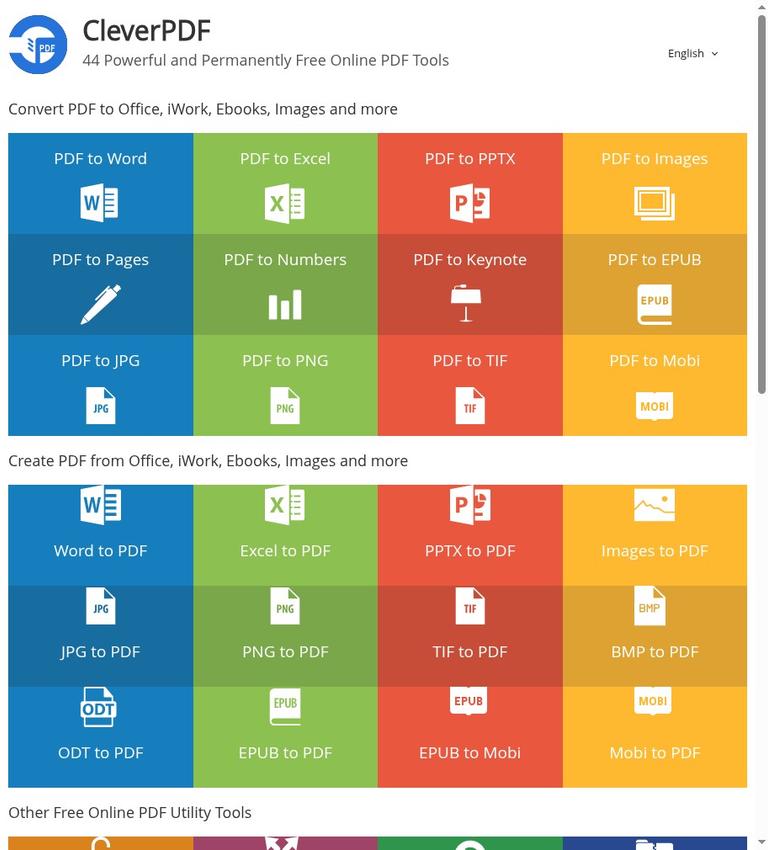
The homepage groups tools around converting PDFs, creating PDFs, and working with images. Conversion options include PDF to Word, Excel, PowerPoint, images, Apple iWork formats, and ebook formats. The listed PDF-to-Word outputs are DOCX and DOC. For PDF-to-Excel, CleverPDF says the tool detects tables. Its listed PDF image formats include JPG, BMP, PNG, and TIFF. Other named conversions include PDF to Pages, Numbers, Keynote, EPUB, and Mobi.
The site also lists tools for creating PDFs from Office, iWork, ebook, and image sources. Named inputs include Word, Excel, PPTX, ODT, EPUB, Mobi, JPG, PNG, TIF, and BMP. Alongside conversion, its PDF utilities include unlocking, splitting, rotating, compressing, encrypting, combining, watermarking, page numbering, image extraction, page reordering, and page deletion. Image tools include format conversion, GIF creation, and extracting GIF frames as images.
The range makes CleverPDF a general-purpose toolbox rather than a narrowly focused converter. However, a list of supported tasks does not confirm how well every file or layout will convert. CleverPDF describes its Word converter as keeping the original formatting well and says its Excel converter uses methods to detect tables. These are vendor descriptions, not independently verified results. If layout, tables, formulas, fonts, or page breaks matter, inspect the converted file in the intended application before using or sharing it.
Practical workflow: an example
The PDF-to-PNG page documents one complete online workflow. It lists computer upload, Google Drive, Dropbox, and drag-and-drop as ways to provide a file. The tool lets users set the output resolution, with a stated range of 36–600 dpi; if no resolution is set, the page says it will use a default. Its instructions describe converting each PDF page into a PNG file and downloading the output files in a ZIP file after processing.
The page specifically says that multiple files are not supported for this feature and asks users to upload one file only. That matters if you plan to process several PDFs in one go: the documentation for this particular online tool does not describe that as an option. Do not assume this specific interface or restriction applies identically to every other CleverPDF tool. The company describes batch conversion as a desktop capability, but the official site does not provide a complete, current inventory of desktop features.
For other tasks, users can select the relevant tool and provide a source file. The exact settings and outputs will vary, and the site does not document every interface in detail. The PDF-to-PNG page says that an encrypted file protected by an open password requires the correct password to access its content. For the unlock function or files with restrictions, CleverPDF says users must have permission to remove the password or restrictions, or be the file’s legal owner.
What is free, and what is paid
CleverPDF’s help page says all its online tools are permanently free, do not require membership, and are available without sign-up or subscription. It describes access to all features as unlimited, while identifying a file-size limitation for online tools. The homepage also calls its online PDF tools permanently free. The official site describes usable online tools, not a preview-only offer.
The important qualification is the stated 20 MB limit: the help page says that files larger than 20 MB will not be accepted by the online service. The PDF-to-PNG page gives more specific wording for that tool, asking users to select a file less than 20 MB and directing users with larger files toward the Windows desktop product. The help page describes the online limit as 20 MB; the tool page’s “less than 20 MB” wording is stricter. Follow the guidance shown on the individual tool page rather than assuming every page phrases the threshold identically.
Desktop software is a separate paid option. CleverPDF says it offers offline versions for Windows and Mac, and describes desktop use as supporting batch conversion, advanced PDF conversion options, and work without an internet connection. The company also says the desktop version runs locally and is completely offline, presenting this as relevant to confidential documents. These are vendor statements; they do not mean the browser tools work offline. The official site does not state the desktop purchase price or a trial duration, so neither should be assumed here.
The help page says a desktop license is issued per PC and that a single license can be used on one computer. It also says that a purchase includes free updates for future versions. For qualifying academic users who contact support, CleverPDF says it offers a 50% discount coupon. That is a stated offer for qualifying users, not a general discount for everyone. The company also describes customized document-conversion work as charged according to the work, in addition to the normal license fee.
Limits, privacy, and account details
According to the help page, online use does not require sign-up or a subscription. The PDF-to-PNG page says its browser-based conversion works in any operating system. Separately, the company offers desktop software for Windows and Mac. It says it currently does not offer API or SDK solutions for developers and that the app does not support command-line use. If you need an automated integration or command-line workflow, the official site does not show CleverPDF providing one.
Online processing involves providing files to the service. CleverPDF says uploaded files are used only for processing and are not viewed, kept, or shared with third parties. Its help page says uploaded and output files are automatically deleted after 30 minutes; its privacy policy says both input and output files are permanently deleted from its servers 30 minutes after processing. The policy also describes an option to request immediate deletion through the delete-file links after processing. The help page advises downloading processed output within 30 minutes. These are the company’s stated practices, not an independent audit. For documents that should not be uploaded, the desktop product is described by the vendor as offline and local; whether that fits your requirements is a separate consideration.
The privacy policy notes that the site uses cookies, including cookies associated with third-party services such as Dropbox, Google Drive, Google Analytics, Google DoubleClick, and Google Adsense. It warns that refusing or deleting cookies may affect some features, preference storage, or selecting and saving files through cloud storage. This caveat may matter if you plan to use cloud-file options while restricting cookies in your browser.
CleverPDF’s terms say results are not guaranteed to be accurate, error-free, or uninterrupted, and that the service is not guaranteed to meet specific requirements. The company also disclaims responsibility for potential damage or loss involving files uploaded to or downloaded from its website. Keep an original copy and verify important output. The official site does not confirm a particular commercial-use license or grant of rights for converted files, so a downloadable result should not be treated as confirmation of usage rights.
Who is it a realistic fit for?
CleverPDF is worth considering if you want a varied set of online PDF and image tools, your files fit the stated online size limit, and you prefer not to create an account. The range may suit routine tasks such as joining PDFs, extracting pages, converting a PDF to an image, or creating a PDF from an image file. The documentation for a specific tool can help you decide whether it fits your job; for example, the PDF-to-PNG page describes resolution settings and ZIP delivery.
It may be less suitable if you regularly work with files over 20 MB, need multiple files processed together in a particular online tool, require a developer API, or need a command-line app. The desktop product may be relevant for larger files, offline processing, and batch conversion, but it is paid and the official site does not give its price. If accuracy matters, plan to inspect the output rather than relying on descriptions such as “keeping the original formatting well.” The company itself does not guarantee that results will be accurate or error-free.
There are also sensible boundaries around sensitive and restricted documents. Online processing requires providing files to the service, even though CleverPDF says files are deleted after 30 minutes. If local processing is essential, the company describes its desktop version as offline; that is a product distinction to weigh alongside your own requirements. For password removal, use the feature only when you have permission or legal ownership, as the vendor instructs.
Alternatives to consider
If you are comparing PDF workflows, you can also look at iLovePDF, PDF24 Tools, and Online-Convert. These are related listings, not a claim that one is better or that its features match CleverPDF’s. Compare the particular task you need, file-size limits, account requirements, privacy information, and whether you need an online or offline workflow. The official site available for this review does not support a detailed feature-by-feature comparison with those products.
Verdict
CleverPDF’s main appeal is a broad set of online tools that its vendor says are free to use without signing up. The clearest practical tradeoff is the 20 MB online file-size limit, alongside a separate paid desktop version for offline use and batch conversion. The online tools are an option to consider for routine files and varied conversion or page-management jobs, but check output quality and read the relevant tool page for its specific restrictions. If you need larger-file or offline work, the desktop edition may be relevant, though its price is not stated on the official site. The official site does not confirm a desktop trial, an API, universal batch support in the browser, or output rights.
Frequently asked questions
Is CleverPDF free?
The company says its online tools are permanently free, with no membership, sign-up, or subscription required. Its desktop software is a separate paid product. The online service has a stated 20 MB file-size limit.
Do you need an account to use CleverPDF online?
No sign-up or subscription is required according to the company’s help page. The PDF-to-PNG page also says that tool does not require personal information or membership sign-up.
What is CleverPDF’s online file-size limit?
The help page states a 20 MB limit and says larger files will not be accepted. The PDF-to-PNG page instructs users to select a file less than 20 MB. Check the individual tool page for its displayed guidance.
Does CleverPDF work offline?
CleverPDF separately offers paid desktop software for Windows and Mac, which the company describes as working without an internet connection and running locally. Its PDF-to-PNG page describes browser-based online conversion.
Does CleverPDF support batch conversion?
The company lists batch conversion as a desktop capability. The PDF-to-PNG online tool specifically says multiple files are not supported and accepts one file only. The official site does not confirm batch support for every online tool.
How long does CleverPDF keep uploaded files?
CleverPDF says input and output files are automatically deleted after 30 minutes and advises downloading results within that time. Its privacy policy says users can request immediate deletion through the delete-file links after processing.
Does CleverPDF offer an API or command-line tool?
The help page says it currently does not offer API or SDK solutions and that its app does not support command-line use.


