

i2PDF
What i2PDF does
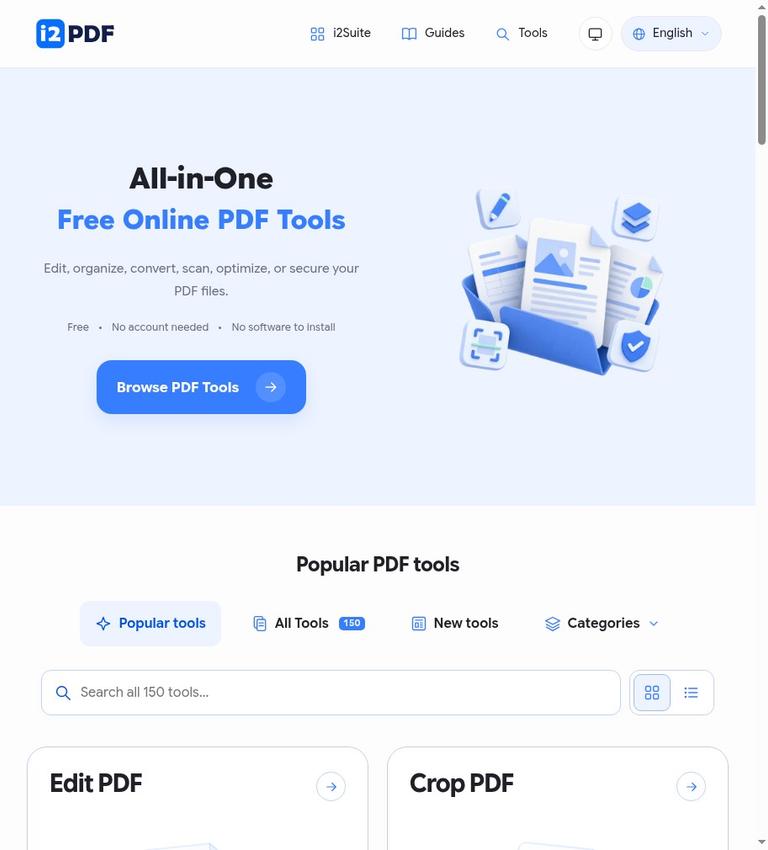
i2PDF is a browser-based collection of PDF and document tools. It brings together options for editing, organizing, converting, scanning, optimizing, and securing files rather than focusing on one narrow PDF task. The site describes its directory as containing 150 free online PDF tools. That breadth may be useful when you need to make several different kinds of changes, but you should check the requirements and output for the individual tool you plan to use.
The editing and reading category includes ways to add text, images, drawings, and highlights. For page organization, the directory lists tools to reorder, rotate, and remove pages, as well as merge multiple PDFs or split a PDF into individual pages or groups. Other tools cover PDF conversion in both directions. The site lists conversions from documents, images, ebooks, and drawings to PDF, and conversions from PDF to formats such as Word, PowerPoint, text, HTML, EPUB, images, and drawing formats. The presence of a format in the directory does not confirm that every conversion will preserve a document’s layout or features.
The collection also includes scan and OCR tools, optimization, and security-related options. The site says PDF OCR can make scanned words searchable and editable. It lists tools for redaction, password protection, signatures, watermarks, and annotations. These are different jobs with different risks: for example, adding a visible signature is not the same as identity verification, and placing a shape over text is not the same as redacting it.
One distinction is worth making explicit: i2PDF and i2OCR are different products. i2PDF is the PDF-tools collection reviewed here; the homepage lists i2OCR separately in its navigation as a text-recognition product. If you are comparing OCR workflows, do not treat the separate product names as interchangeable.
Practical workflow
The basic workflow is to choose a tool for the task, provide its input, adjust settings or preview when available, and download the result. Depending on the tool, the site says you can upload files, paste text, or enter a URL. The exact inputs, settings, and output formats vary, so start from the tool page that matches the job rather than assuming every tool accepts the same kind of source.
For a page-management task, you might open the organize tool to reorder, rotate, or remove pages; use merge to combine PDFs; or choose split to separate a document into pages or groups. If you are making a new PDF from another type of material, the directory lists inputs including Word, Excel, PowerPoint, text, CSV, JSON, XML, HTML, ebooks, image formats, and drawing formats. If you need content out of a PDF, listed output options include Word, PowerPoint, text, Markdown, HTML, EPUB, JSON, XML, image formats, and drawing formats.
OCR has a more specific workflow and constraint. The site says you can choose a recognition language and process the current page or a selected area, then download text, Word (DOCX), or PDF output. Its directory says PDF OCR processes one page or selected area per request. That makes the described process more targeted than a promise of one-click recognition across an entire document. Afterward, check the result rather than assuming recognition is exact, especially for names, numbers, and unclear words.
The interface can offer a preview, but the site does not say that every tool has one. It describes preview as available when applicable, and specifically mentions live previews for some tools, including PDF booklets and removing PDF content. Treat a preview as a step in the workflow where offered, not as a universal feature or proof that the downloaded file is correct.
Free access and paid distinctions
The official site says all i2PDF tools are free to use and that no paid subscription is required. Its tools directory also says the tools are free without an account or software installation, while the terms say registration or login is not required. On the official site, i2PDF’s value is not preview-only: the stated free access applies to the tools themselves. A preview, where offered, is part of some workflows and is not presented as the only free value.
There is no supported paid-versus-free feature comparison to report. The published official statements do not confirm a paid tier, paid features, subscription prices, or a separate plan with additional limits. It would therefore be unsupported to describe i2PDF as having a verified premium upgrade or to imply that a particular feature requires payment. The site does say advertising helps support access without registration.
Free access does not mean unlimited processing. File-size, page-count, and batch limits vary by tool, and the site says each tool explains applicable limits. It gives examples rather than one universal allowance: Merge PDF accepts up to 25 PDFs, while Compress PDF accepts an input up to 300 MB. Those figures apply to those named tools, not to the collection as a whole. PDF OCR’s one-page-or-selected-area-per-request limit is another reason to check the individual tool before planning a large job.
Limits, accuracy, and document handling
The collection’s range is useful, but the terms make clear that features, accepted formats, output formats, and limits vary by tool. The site does not guarantee uninterrupted availability, a particular processing speed, or compatibility with every document. It may also change, limit, or discontinue tools, or temporarily restrict access for maintenance, capacity, or security. If a task is urgent or repeated, that uncertainty matters; the official site does not confirm a service-level guarantee.
Conversions may alter layout, fonts, colors, links, forms, annotations, metadata, or other document features. OCR, extraction, comparison, and AI translation can omit, misread, or invent information. A successful download is not a certification of accuracy, accessibility, legal compliance, or suitability for your purpose. Keep an original copy and inspect the result for page order, completeness, and readability before sharing it or replacing the source document. These cautions are particularly relevant when a document’s formatting or exact wording matters.
Use the intended redaction tool when removing sensitive information. The terms distinguish redaction from putting an ordinary shape over text and advise verifying that sensitive content is removed from the downloaded result. Similarly, the site says a signature added as drawing, image, or text is not, by itself, identity verification or a certificate-based digital signature. Do not infer stronger legal or verification properties from a tool’s label alone.
Privacy deserves a deliberate check before uploading. According to the privacy policy, processing depends on the tool: some tools process document content in your browser, while server tools send content needed for the task to the service’s processing systems. The policy also says an upload can happen when you open a file or request a preview, not only when you press Start. If you want to avoid sending a particular document, do not assume that opening or previewing it is a no-upload step; check the relevant tool and policy first.
The policy says submitted files and their contents are not shared with third parties, including advertising partners, and are not used to train AI models. It says uploaded inputs, temporary working files, and generated outputs are deleted from the service’s servers within 30 minutes after processing finishes, though they may be deleted sooner. That is a stated retention period for those files, not a claim that every kind of operational information disappears on the same schedule. The policy says security records, operational logs, and correspondence are separate from temporary documents and are kept as long as needed for their purposes.
The terms say you retain ownership of submitted content to the extent you already held those rights, and the service’s permission to handle it is limited to what is needed to perform the requested operation, provide the result, and protect the service. The terms also place responsibility on you to have the necessary rights and permissions to upload, process, modify, and download the content, including personal information. The official site does not confirm blanket commercial-use permission for every output or tool.
The privacy policy notes that Sciweavers LLC is based in the United States, while hosting, processing, and advertising may involve other countries whose privacy rules differ from those where you live. It also cautions that no website or transmission method can guarantee complete security and advises assessing whether the service is suitable for highly sensitive or regulated information. For sensitive records, that caveat should carry more weight than convenience or the fact that the tools are free. The terms also say i2PDF is not a backup, archive, cloud drive, or secure records-management system, so keep your own originals and downloaded results.
Account and platform
i2PDF is presented as a browser service. The site says you can use it without registering, signing in, or installing software, and that its tools run in a browser on phones, tablets, and computers. It says you do not need to install a mobile app. The site notes that a larger screen can make detailed editing easier and that large files may need more device memory.
The published statements do not confirm a desktop application or public API. The terms prohibit scraping, bulk automation, or reselling access in ways that interfere with the service or circumvent its intended controls, and say high-volume or integrated use should be discussed with the operator first. The documented access model is browser-based; the official site does not confirm i2PDF as an automation platform.
Who should consider it
i2PDF may be worth considering if you want a free, account-free browser tool for a specific PDF task and can check the tool’s own limits and output. Its breadth includes jobs such as rearranging pages, merging files, converting formats, or adding annotations. The site’s examples make the variation in limits concrete, and the no-registration model means the stated tools can be used without creating an account.
It may be a poor fit when you need guaranteed processing speed or availability, a universal limit across tools, or assurance that a conversion will preserve every document feature. It is also not a substitute for a backup system, and the official site does not confirm a desktop app or API. For sensitive or regulated documents, decide whether the described browser or server processing is appropriate before submitting anything. For high-stakes OCR or conversion, review the downloaded result and keep the original.
If your main need is text recognition rather than the broader PDF collection, compare the separate i2OCR listing. For other PDF-tool listings to evaluate, consider iLovePDF and PDF24 Tools. These are alternatives to compare, not claims that either service is better or has particular features.
Verdict
i2PDF’s strongest verified point is that it offers a broad set of browser-based PDF tools that the official site says are free to use without an account or installation. That may suit occasional document tasks, provided you choose the right tool and read its limits rather than expecting one common rule for the entire directory.
The tradeoff is that the breadth does not remove the need for checking. Limits differ, conversions can change document details, OCR can be wrong, and some tasks send content to server processing systems. The service does not promise uninterrupted availability, and it is not a storage or records-management solution. Use it for the task at hand, keep your own original, and review the result. For sensitive documents, assess the privacy terms and suitability before uploading. For work where accuracy, compliance, or exact formatting is essential, treat its output as something to verify, not a final authority.
FAQs
Is i2PDF free?
The official site says all i2PDF tools are free to use and no paid subscription is required. Individual tools may still have file-size, page-count, or processing limits, so check the relevant tool before starting.
Do you need an account to use i2PDF?
No. The site says you can use the tools in a browser without registering, signing in, or installing software.
Does i2PDF work on phones and tablets?
The tools are described as running in a browser on phones, tablets, and computers. The site says you do not need to install an app, though it notes that a larger screen can make detailed editing easier.
What are the file limits?
There is no single limit stated for every tool. Limits vary by operation. The directory gives examples: Merge PDF accepts up to 25 PDFs, and Compress PDF accepts an input up to 300 MB. Check the tool you intend to use for its current requirements.
Does i2PDF OCR a whole PDF at once?
The directory says PDF OCR processes one page or selected area per request. The FAQ says you can choose a recognition language and download text, Word (DOCX), or PDF output. Review names, numbers, and unclear words because OCR can misread information.
Are i2PDF and i2OCR the same product?
No. They are separately named products in the i2Suite navigation. i2PDF is the PDF tools collection; i2OCR is listed separately as text recognition.
Is it safe to upload sensitive documents?
The privacy policy says processing varies by tool: some content is handled in your browser, while server tools send content to processing systems. It describes deletion of uploaded and generated files within 30 minutes after processing finishes, but cautions that no website or transmission method can guarantee complete security. Assess suitability for sensitive or regulated information before uploading.


