

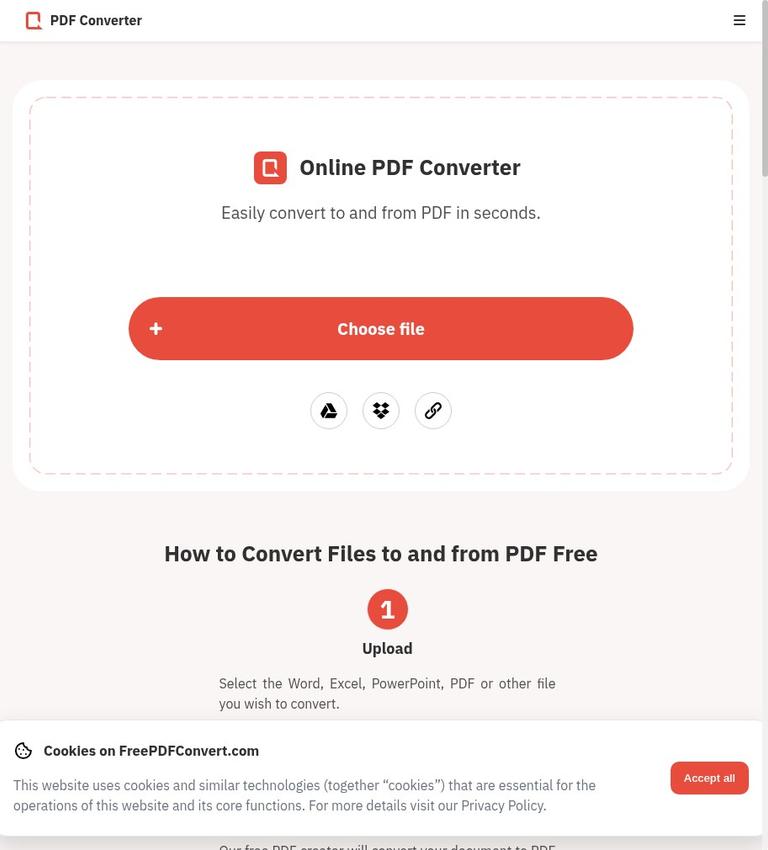
What FreePDFConvert is
FreePDFConvert is a browser-based PDF service for converting documents and images, and for carrying out common PDF tasks such as merging, splitting, compressing, rotating, and protecting files. It is a cloud tool, not a desktop PDF editor: files are sent to the service for processing rather than handled only on your computer. Its advertised collection includes more than 20 tools, with conversions to and from PDF involving Word, Excel, PowerPoint, and images.
The service suits a practical job-by-job workflow. You can arrive with a document to convert, make the change, and download the result without installing an application. The first free conversion is available without registration. That makes it easy to try a basic conversion, but it does not mean every tool or every subsequent task is unrestricted. Free access has reported limits, while the membership plan is presented as a way to remove waits and increase capacity.
The most useful way to judge the service is by the file and the task, not by the broad tool count. A simple office document converted to PDF is a different challenge from a dense spreadsheet, a presentation with unusual fonts, or a scanned page that contains an image of text. After conversion, check the result in a PDF reader before sharing or relying on it. Layout, tables, fonts, hyperlinks, and page breaks can change during conversion.
Key features and what they mean in practice
Office and image conversion
FreePDFConvert handles conversions between PDF and several familiar file types: Word, Excel, PowerPoint, and images. That covers common needs such as turning a document into a PDF for distribution or converting a PDF into an editable office-file format. Conversion in the other direction is not the same as recovering the original source file. A PDF may not retain the structure, styles, or data needed to recreate the original document exactly.
For a Word document, inspect headings, page numbering, spacing, and any content near page edges. For Excel, review formulas, column widths, sheet selection, and print layout; a PDF export is a fixed-page representation, not a working spreadsheet. For PowerPoint, check slide order, text wrapping, and graphics. With images, confirm that the selected pages and orientation are right. These checks are sensible for any conversion service and are especially important when a file will be published or used for business.
A scanned PDF needs special care. A scan may be a collection of page images rather than selectable text. The product information does not promise that every workflow will turn those images into editable text, so do not assume that converting a scan to a Word file automatically provides accurate text recognition. If the goal is searchable or editable text, test a representative page and confirm the result before processing a large document.
PDF management tools
The service also offers tools to merge and split PDFs, compress them, rotate pages, and protect files. These address common document chores without requiring a full desktop publishing application. Merging can combine related files; splitting can separate pages or sections; rotation can correct page orientation; and compression can reduce file size when a document is cumbersome to send or store.
Treat each operation as a transformation that deserves a quick review. After merging, verify the order and page count. After splitting, open each resulting file and make sure the intended pages are present. After rotating, check pages individually, since a mixed-orientation document can require more attention than a uniformly sideways scan. Compression can reduce size, but inspect images and small text for readability. When adding protection, make sure the resulting file opens as intended for the people who need it.
The broad list of tools is convenient, but it does not eliminate the need to confirm the exact output. A PDF can look correct at a glance while hiding a missing page, broken hyperlink, shifted table, or a layout change on a later page. If the file is important, review all pages or at least the portions most likely to be affected.
How to use FreePDFConvert step by step
- Choose the specific task. Decide whether you need a format conversion, a merge, split, compression, rotation, or protection. Starting with the task helps avoid sending a file through the wrong workflow.
- Prepare the source file. Open it locally first if possible. Confirm that it is the right version, has the pages you expect, and does not include material you do not want to upload. Keep a local copy of the original.
- Select the matching tool. Use the relevant conversion direction or PDF operation. For example, distinguish converting a Word document to PDF from converting a PDF to Word; those directions have different goals and may produce different kinds of output.
- Upload and process the file. The service works in the cloud, so the file must be sent to FreePDFConvert for processing. Follow the on-screen workflow and wait for the converted or modified file to be ready.
- Download the output. Save it to a known location and give it a clear name. Avoid replacing your source until you have checked the result.
- Inspect the result in a suitable application. For conversions, look at tables, fonts, hyperlinks, page breaks, images, and page order. For PDF operations, check that the requested pages or changes are present. If the file is a scan, confirm whether the text is actually selectable and editable rather than assuming it is.
- Keep only what you need. FreePDFConvert says it offers manual deletion and automatic deletion after three hours. You can use the manual option when you want to remove a file sooner, and should still avoid uploading sensitive material unless the service is appropriate for it.
This process is deliberately cautious about the output, not because every conversion will fail, but because conversion is not a guarantee of identical formatting. A brief visual review is a low-effort way to catch problems before a file is sent to a client, submitted, or archived.
Free and paid pricing
The free option includes a first conversion without registration. A reported free guest compression allowance is one task per 60 minutes. That figure comes from an October 26, 2026 RealTest report and is not a universal quota for every tool or account. Free availability and tool-specific limits can vary, so treat the compression figure as a reported experience rather than a promise for all users.
A recorded October 20, 2026 pricing snapshot listed Premium at $8 per month, or an equivalent $5 per month on a 12-month plan, and a $120 lifetime option. The same snapshot described Premium as offering unlimited conversions, file size, and access to more than 20 tools, with no waits, batch processing, and advanced compression. Those are recorded prices and plan descriptions, not guaranteed live checkout quotes. Check the membership page before paying, since checkout terms and prices may change.
The best choice depends on how often you use the service and whether waiting or batch processing matters. A person converting one file occasionally can start with the free conversion and see whether the workflow is sufficient. A user handling many files may value the membership features, particularly the stated no-wait and batch options. Compare the amount of use you expect with the current checkout price instead of assuming that a subscription pays for itself.
The lifetime price is a one-time figure in the October 20 record, while the monthly and annual-equivalent figures are recurring-plan pricing. Read the checkout details carefully to establish the actual billing interval, renewal terms, and included features before purchasing. ConvertAPI integration is a separate API offering with separate billing; it is not the same as a FreePDFConvert membership.
Real limits to consider
FreePDFConvert's tool range is broad, but a tool count alone does not establish that every file will convert perfectly or that every free tool has the same allowance. The first conversion without registration is useful for a trial, while the reported guest compression limit indicates that at least one free workflow may have a wait between tasks. Avoid planning a time-sensitive batch around free access without first checking what the current interface allows.
Formatting is another practical limit. The service converts between formats, and conversion can change how a document is laid out. Tables, fonts, hyperlinks, and page breaks deserve particular attention. Complex spreadsheets and presentations may require more inspection than a short plain-text document. Keep the original file so you can make corrections or try another route if the output does not meet your needs.
A scanned PDF is not necessarily a text document. If the pages are images, a conversion workflow may not produce editable text in every case. Do not rely on an OCR capability unless the specific tool clearly supports it and the output has been checked. For a document with legal, financial, or accessibility requirements, validate the result in the application and workflow you intend to use.
The cloud workflow also means file size and upload time matter in practice. Premium is described as removing file-size limits, but the recorded free details do not establish a universal free file-size ceiling. Check the current tool page for the relevant upload restriction rather than applying a limit from one operation to another.
Privacy and data handling
FreePDFConvert uploads files for cloud processing. The homepage describes 256-bit SSL protection for file transfers, a manual deletion option, and automatic server deletion after three hours. Download the finished file promptly and use manual deletion if you want to remove the server copy sooner.
Upload only documents you are permitted to send to a third-party processor. For confidential contracts, medical records, or restricted client files, use an approved local tool or your organization's document workflow. Keep the original and the downloaded result in your own storage. A short server deletion period does not remove the need to authorize the initial upload.
Who should use it—and who should look elsewhere
FreePDFConvert is a good fit for occasional users who need a browser-based conversion or a straightforward PDF operation and want to begin without registration. It can also suit users who appreciate having conversion, compression, merging, splitting, rotation, and protection in one service instead of looking for separate tools. The Premium plan may be relevant to frequent users who need batch processing, fewer waits, or the stated higher capacity.
It is a weaker fit when files must stay local, when exact layout preservation is essential without a review step, or when a scanned document must become dependable editable text. It is also not the right choice for someone who expects the free experience to have a single, clearly uniform quota across all tools. Check the particular workflow and current terms before relying on it for a large or urgent job.
For local document conversion, LibreOffice can export office documents to PDF without sending them to a web converter. That may be preferable when local handling is a priority, although it is a different workflow and still requires checking the output. For other browser-based PDF services, compare Smallpdf, iLovePDF, CleverPDF, and PDF.io. Choose based on the exact task, the current free allowance, output quality on your file, and how each service handles uploads. No alternative removes the need to inspect an important converted document.
FAQ
Can I use FreePDFConvert without registering?
Yes. The first free conversion is available without registration. That does not mean all tools or later tasks have unlimited free access.
What is the reported free compression limit?
A RealTest report dated October 26, 2026, reported one free guest compression task per 60 minutes. Tool-specific limits may vary.
How much does Premium cost?
An October 20, 2026 pricing record listed $8 per month, $5 per month equivalent on a 12-month plan, or $120 for a lifetime option. Check checkout for current terms.
Does FreePDFConvert keep uploaded files?
The service says it supports manual deletion and automatic deletion after three hours. Files are processed in the cloud.
What should I check when converting a scanned PDF?
Scanned pages are images, so check whether the result contains selectable, editable text or only page pictures. Inspect tables, line breaks, and page order before using the output.
Is ConvertAPI included with Premium?
No. ConvertAPI integration has separate API billing and is distinct from a FreePDFConvert membership.
Sources
- FreePDFConvert homepage
- FreePDFConvert membership
- RealTest report on FreePDFConvert compression, October 26, 2026
Information and recorded pricing referenced here are dated November 11, 2026. Check the service before starting a time-sensitive task or purchasing a plan.


