
YouCompress review: a simple online file compressor
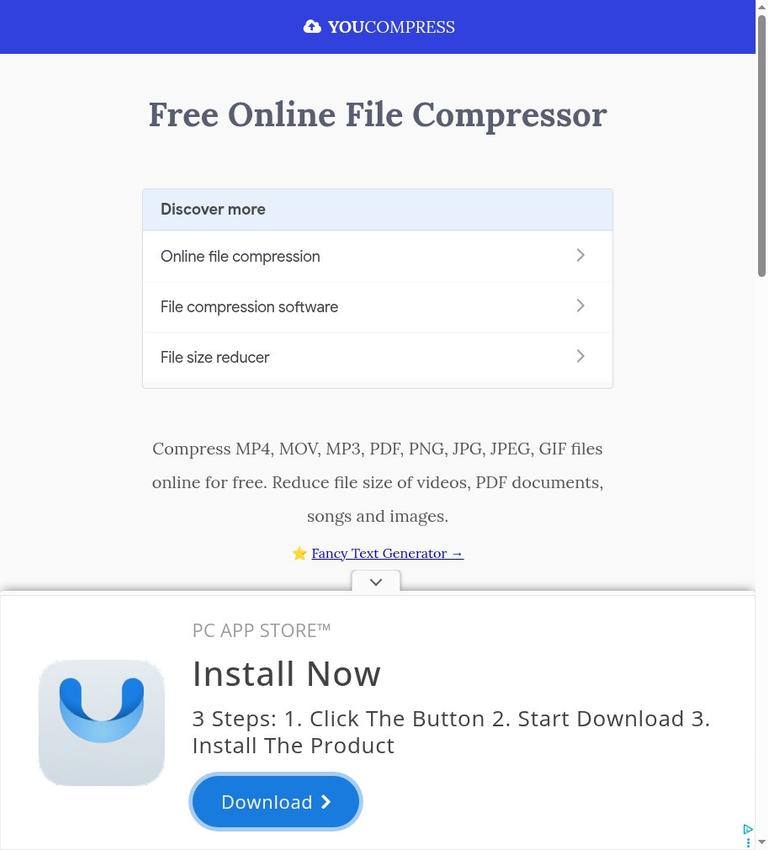
YouCompress is a free, browser-based file compressor. It accepts several common video, audio, image, and document formats, processes uploads on its servers, and returns compressed files for download. You do not need to create an account or install software, and the service does not add a watermark. Its appeal is straightforward: upload a file, let the service apply automatic settings, then download the result.
That simplicity also defines the product’s limits. YouCompress does not offer manual quality controls, so you cannot choose a target bitrate, compression level, or output quality. It is best suited to people who want a quick, low-effort attempt to reduce a file’s size rather than control every technical detail. Compression does not guarantee a smaller result: a file that has already been optimized may barely change or may not shrink at all.
The service describes its file count as unlimited, but that should not be confused with unlimited file size. There is no subscription or credit allowance to manage, yet practical upload constraints still matter, particularly for large files. For large files, a local workflow avoids lengthy uploads and makes your computer’s resources the main processing constraint.
What YouCompress is
YouCompress is a cloud tool for reducing the size of supported files through a web browser. Its homepage lists MP4 and MOV video, MP3 and WAV audio, PNG, JPG, JPEG, GIF, and TIFF images, plus PDF, DOC, XLS, PPT, ODT, and APK files. That range makes it useful as a general-purpose first stop when you do not want to install a separate application for each file type.
The service handles the compression settings automatically. You choose and upload a file, wait for server processing, and download the compressed version. This is different from a desktop editor or a specialist encoder, where you might adjust resolution, quality, format, bitrate, or other export parameters. YouCompress prioritizes fewer decisions over detailed control.
It is also important to distinguish a compressor from a file converter or editor. The listed formats indicate what the service can accept; they do not mean that YouCompress is a complete editing suite or that it offers a user-controlled conversion workflow. If you need to change a video’s dimensions, adjust an audio track, edit an image, or tune a PDF, use a tool designed for that job rather than assuming compression will provide those controls.
Key features and what they mean in practice
Automatic compression
YouCompress applies automatic settings instead of asking you to set a quality level. That helps beginners avoid a crowded export screen and makes a quick upload-and-download task easier. It also means you cannot directly trade quality for file size. If the downloaded result is not small enough, the service does not give you a manual slider to push compression further.
The actual outcome depends on the source file and the processing applied to it. Do not assume that every upload will lose a predictable percentage of its size, look identical, or become smaller. Keep the original until you have checked the result. For an important image, video, or document, compare the compressed copy with the source before replacing or sharing the original.
Broad format coverage
The listed formats cover everyday media and office files, including common video, audio, image, and document extensions. This can save time when you have several types of files to prepare. The format list is not a promise that every file with a listed extension will work under every circumstance: damaged files, unusual encodings, or files that exceed practical upload constraints can still be problematic.
For a routine task, the practical question is whether your specific file uploads and produces a usable download. Test a copy when the file matters. If the output is not suitable, try a dedicated application with controls for that format instead of repeatedly submitting the same file without a way to change the settings.
No account, installation, or watermark
YouCompress is presented as a free cloud service that does not require signup or software installation, and its output does not carry a watermark. That lowers the friction for occasional use: you can open the site, process a file, and leave without managing an account or subscription.
No signup does not mean the file stays on your own device during processing. Uploads go to the service’s servers. The distinction matters for confidential or sensitive material, even when the tool is convenient and free.
Unlimited file count, not unlimited file size
The service describes the number of files as unlimited. That is a statement about count, not a guarantee that files of any size can be uploaded or processed. File size, network speed, browser behavior, and server processing can affect whether a particular job is practical. Avoid interpreting “unlimited” as a promise that very large files will work.
If a large upload is slow or fails, a local tool is often a better choice because the file can be processed on your computer without sending it to a web server. For a small, ordinary file and a quick task, the browser workflow may be more convenient.
How to use YouCompress step by step
-
Choose a file and check its importance. Confirm that it is one of the formats listed by YouCompress. Keep an untouched original, especially if the file is valuable or difficult to recreate. For sensitive work, decide whether uploading it to a cloud service is appropriate before you begin.
-
Open the YouCompress website. The service works through a browser and does not require installation or an account. Use a browser and network connection you trust, particularly if you are handling personal or work files.
-
Upload the file. Select the file you want to compress and start the upload. The file must travel from your device to the service, so upload time depends in part on its size and your connection. Very large files can be impractical to transfer over a slow connection.
-
Wait for server processing. YouCompress processes the uploaded file in the cloud and uses automatic settings. There is no manual quality adjustment to make during this stage. If you need a specific output size or exact quality setting, this workflow is not a good match.
-
Download the result promptly. Save the compressed file to a location you can find. The service says uploaded and compressed files are automatically deleted after a few hours, so do not rely on the website as long-term storage. Download the result while it is available.
-
Check the output before using it. Open the downloaded file and confirm that it works for your purpose. Compare its size with the original and inspect or play it as appropriate. Compression may not reduce every file, and the automatic settings may not suit every quality requirement.
-
Keep or remove your original deliberately. Retain the original if you may need to redo the task using a different tool or setting. YouCompress’s automatic deletion of its server copies does not replace your own backup practices; it only describes what happens to the uploaded and compressed files on the service.
Free plan and pricing
YouCompress costs $0 and requires no account or subscription. You can compress an unlimited number of files without buying credits, and output files have no added watermark. There is no paid plan to unlock additional quality controls: the service uses automatic settings.
Unlimited file count is not the same as unlimited file size. Choose a local tool when a large upload would be inconvenient, or when you need to control bitrate, dimensions, or a specific target file size. For routine documents and short clips, the free upload-and-download workflow keeps the task simple.
Real limits to consider
The clearest functional limit is the lack of manual quality controls. YouCompress makes the decision for you, which is convenient when you want a simple attempt at compression but restrictive when you have a particular output target. A video prepared for a strict upload limit, an image that must retain fine detail, or audio that must meet a specific technical specification may need a specialist tool.
The next limit is that compression results vary. Some files have already been compressed by a camera, phone, editing program, or earlier export. Compressing them again may yield little reduction, and the output should not be assumed to be lossless or visually identical. Check both the final size and the content quality rather than relying on the word “compressed” as a guarantee.
Cloud processing adds upload and download time. For a large file, those transfers can be the slowest part of the job, and an upload can be inconvenient on a limited connection. The service’s unlimited number of files does not remove this issue. When a file is too large to move comfortably through a browser, local software can avoid the upload step.
Finally, server copies are temporary rather than a storage feature. YouCompress says uploaded and compressed files are automatically deleted after a few hours. That is useful to know when planning a download, but it means you should save the output promptly and should not expect to retrieve it later from the site.
Privacy and file handling
YouCompress uses HTTPS uploads and processes files on its servers. HTTPS protects the connection between your browser and the service during transfer; it does not mean the file is processed only on your device. The service says both uploaded files and compressed files are automatically deleted after a few hours.
For everyday, non-sensitive files, this may be an acceptable balance between convenience and temporary cloud processing. For private documents, unreleased work, client material, or files subject to organizational rules, consider whether a third-party upload is allowed. A local application keeps the source on your own device during processing and avoids sending it to YouCompress.
A practical privacy routine is simple: use only files you are permitted to upload, avoid leaving the result in a browser workflow when you need to keep it, download it promptly, and retain your own copy if it matters. Automatic deletion from the service is not a substitute for checking where your downloaded file is saved or for maintaining a backup.
Who should use it—and who should not
YouCompress is a good fit for someone who wants a fast, no-account way to try compressing a common media or document file. It is especially convenient for occasional jobs where an automatic result is acceptable and the user would rather not install software. The broad list of formats also helps when a single browser service is more practical than searching for a different utility for each file type.
It is a weaker fit for people who need to set exact quality, resolution, bitrate, or target file size. It is also not the right choice when a file must remain on the user’s computer, when a large upload is impractical, or when a particular format’s output needs close technical control. In those cases, the extra effort of a dedicated local program can be worthwhile.
Alternatives
For video compression on a computer, HandBrake is a local alternative. For local image compression, Squoosh is another option. If you want a browser-based image tool, TinyPNG is an alternative; for PDF tasks, Smallpdf offers a dedicated PDF workflow. These alternatives have different features and workflows, so choose based on whether you need local processing, image-specific compression, or broader PDF tools rather than assuming they behave exactly like YouCompress.
FAQ
Is YouCompress free?
Yes. YouCompress costs $0 and has no subscription or credits.
Do I need an account or installation?
No. YouCompress requires neither signup nor software installation.
Which file types does YouCompress list?
It lists MP4, MOV, MP3, WAV, PNG, JPG, JPEG, GIF, TIFF, PDF, DOC, XLS, PPT, ODT, and APK.
Can I control compression quality?
No. YouCompress uses automatic settings and offers no manual quality tuning.
Does YouCompress guarantee a smaller file?
No. Already-compressed files may not shrink, and results vary.
How long does YouCompress keep files?
It says uploaded and compressed files are automatically deleted after a few hours; download the result promptly.


